
Agent chat
The Kinisma Agent's chat, with Brainstorm and Make video modes, editing one scene, attaching files, dictation, progress, stopping, and what a video has cost.
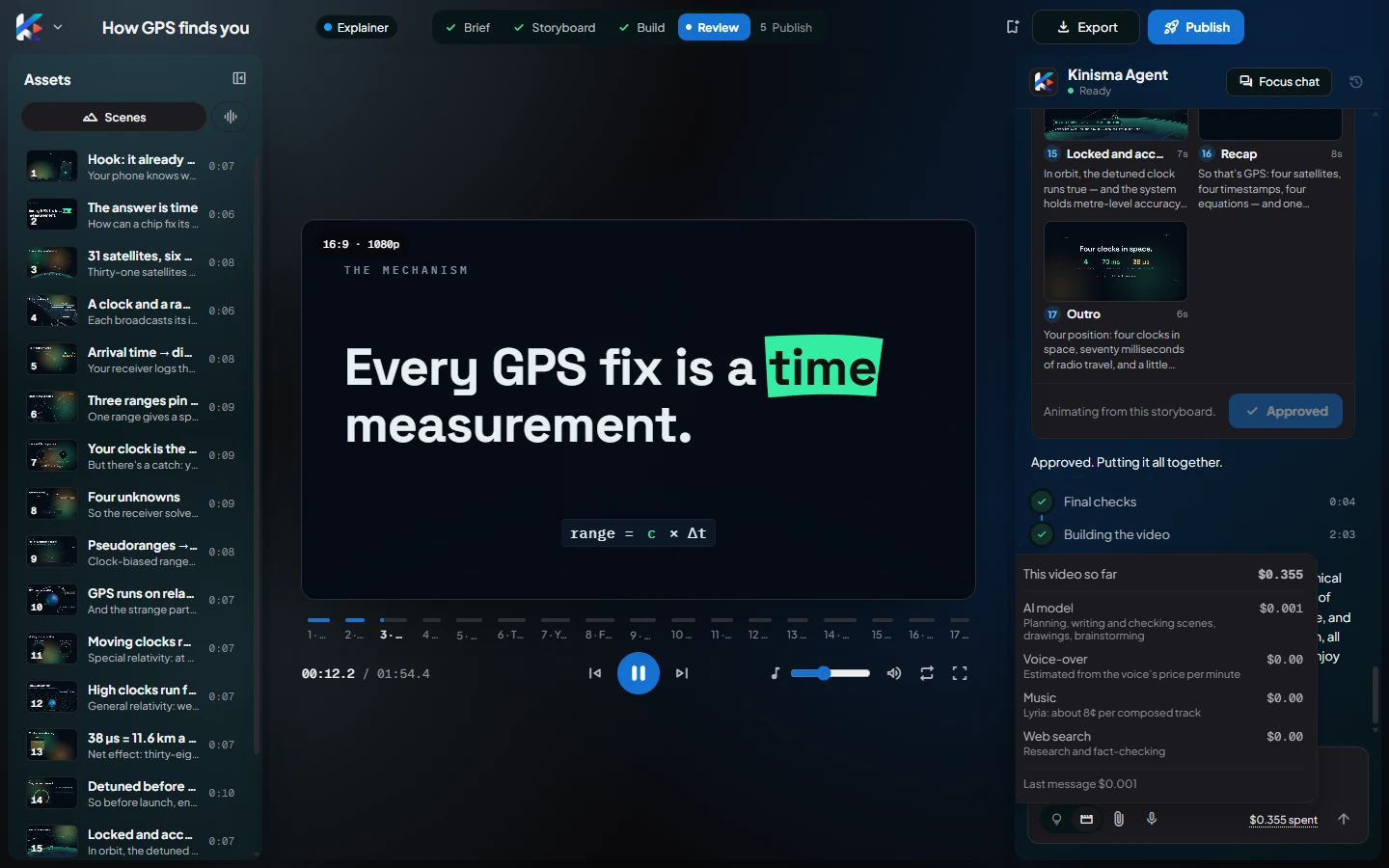
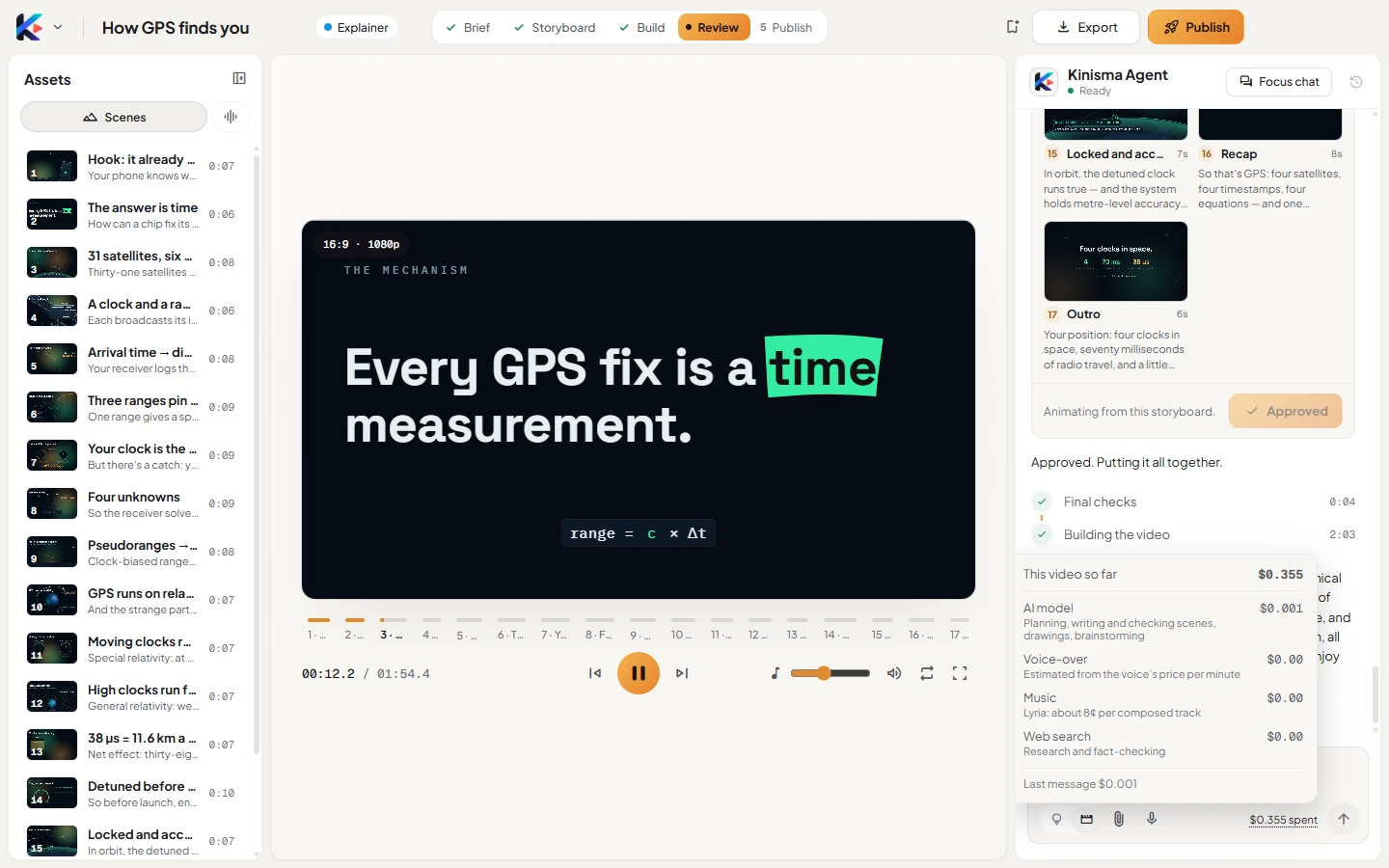
The chat on the right of the Studio is how you work with the Kinisma Agent: you describe what you want, and it plans, designs, narrates and builds the video. Click Focus chat at the top of the chat to give it the whole window (as here), and Show preview to bring the preview back.
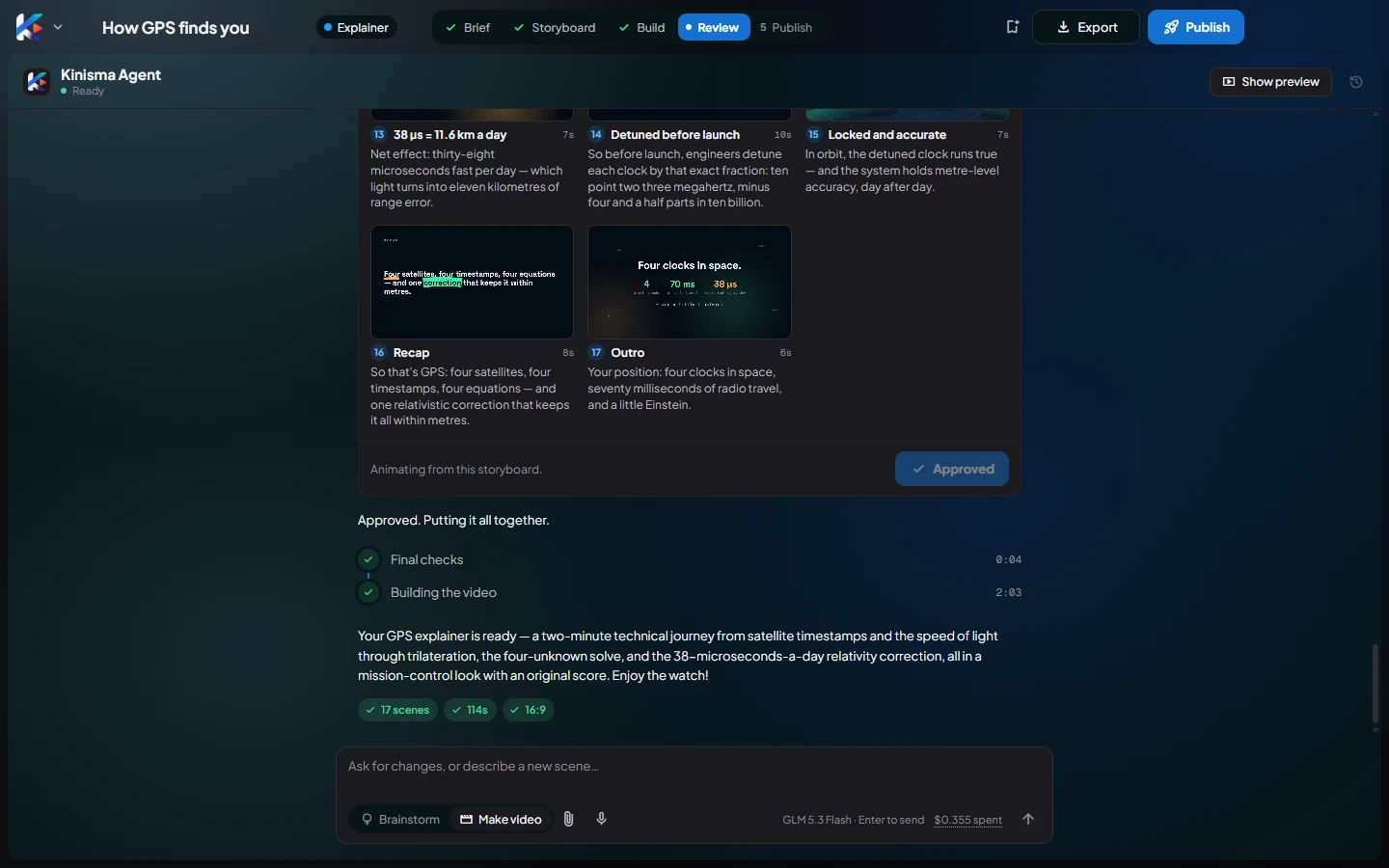
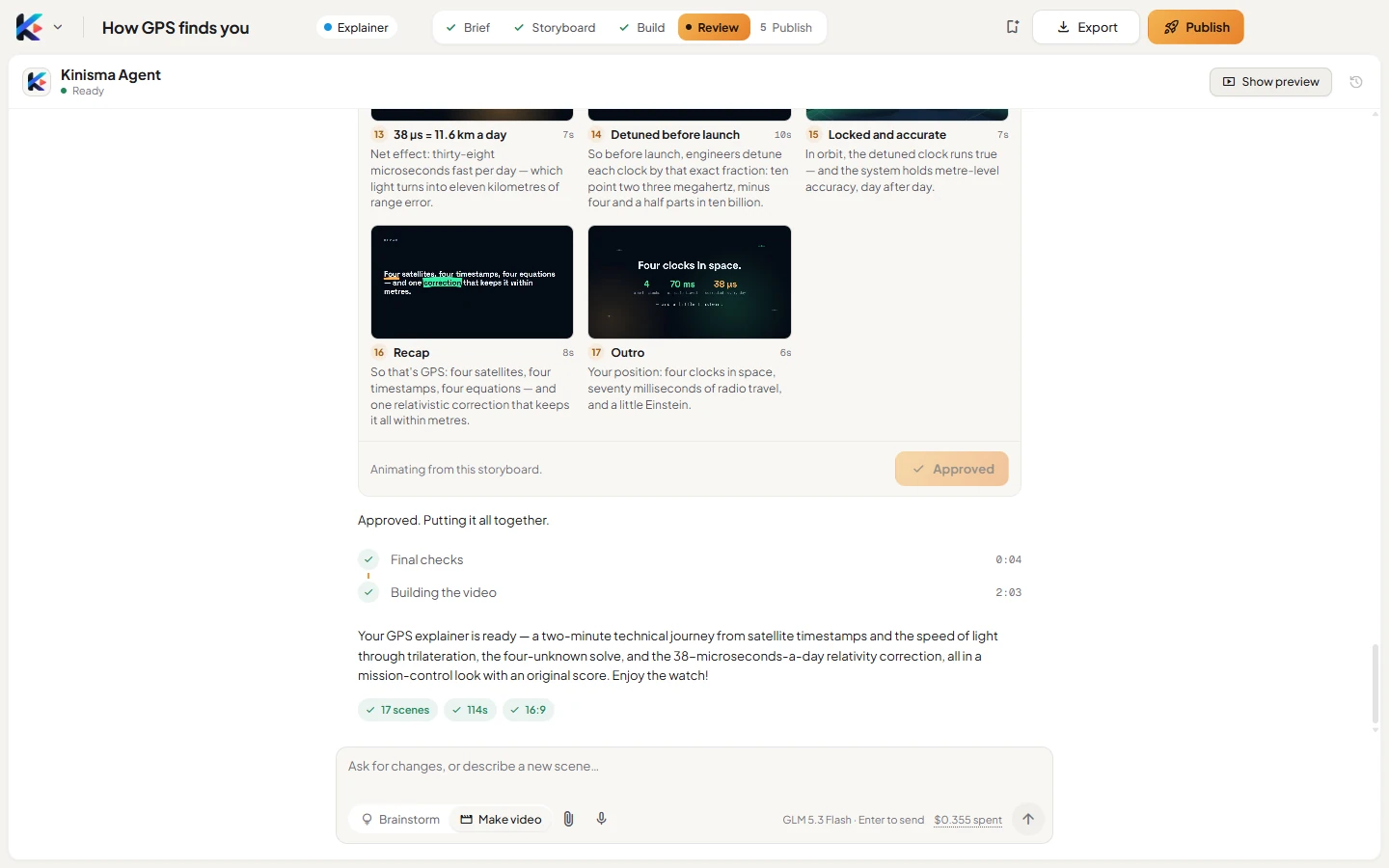
Brainstorm and Make video
The two buttons under the message box set what your messages do:


- Brainstorm: talk the idea through. Ask for ideas, hooks, angles or who the video is for. Nothing is made yet.
- Make video: your messages make or change the video.
A new project opens in Make video: describe the video and the agent starts making it. To talk an idea through first, pick Brainstorm; when you're happy with an idea, press Make this video on the bar that appears, and the agent writes the brief from your conversation and starts making the video.
Suggestion chips above the box help you start, for example Give me 5 video ideas or, once a video exists, Make it shorter.
Writing a message
- Enter sends; Shift Enter starts a new line.
- Describe changes in plain words: "use a warmer palette", "slow down the intro", "add a scene about pricing after scene 4".
Change one scene
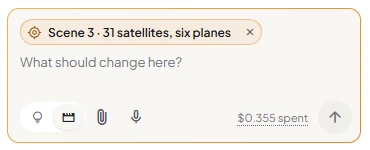
Select a scene, either in the bar under the preview or in Assets, and a chip with its name appears in the message box. What you write next is about that scene only. Click × on the chip to go back to the whole video.
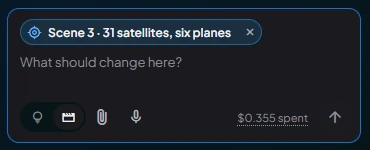
Attach files
Click the paperclip to attach files, or the folder button to attach a whole folder (up to 200 files, subfolders kept). You can also drop files or a folder on the chat. Up to 10 attachments per message:
- Images: logos, screenshots or photos. The agent looks at them and can put them in scenes.
- Videos and audio: the agent looks inside your clips and transcribes what's said.
- Documents: PDF, Word, PowerPoint (with speaker notes) and Excel, plus txt, md, csv, json, srt, vtt or html. The agent reads them for facts and wording, and keeps pictures inside documents for the video.
Attached files are copied into the project's folder. See Attach files and folders for the details and limits.
Dictate
Click the microphone, speak, then click Stop and transcribe. The text appears in the box for you to edit before sending. Dictation uses your OpenRouter key. If your microphone is blocked, allow it in Windows Settings → Privacy & security → Microphone.
Progress and stopping
While the agent works, a card in the chat shows each step, for example Writing the script, Designing and animating the scenes, Reviewing every scene. The preview opens as soon as there's something to watch.
To stop, click Stop (the send button while it works, or on the progress card). The agent says "Stopped. Say 'continue' to pick up from here."
What this video has cost
The $… spent link under the box shows what the AI has cost on this video so far, split into the model, voice-over, music and web search.
When something goes wrong
The agent posts a card explaining the problem, with buttons such as Retry, Open settings or Open account. See Troubleshooting.
Questions
What's the difference between Brainstorm and Make video?
In Brainstorm, nothing is made: you talk the idea through with the agent. In Make video (where a new project opens), every message makes or changes the video. Press Make this video when your brainstorm is ready, and the agent writes the brief from your chat.
Can I stop the agent?
Yes. While it works, the send button becomes Stop. Say continue to pick up where it left off.
Was this article helpful?