
Settings
Every tab of Kinisma Studio's Settings, covering the AI model and keys, video profiles, storage and saved sign-ins, export counts, and your account and plan.
Open Settings with Ctrl , or from the main menu (the Kinisma logo). It has five tabs. Press Esc to close it.
AI model
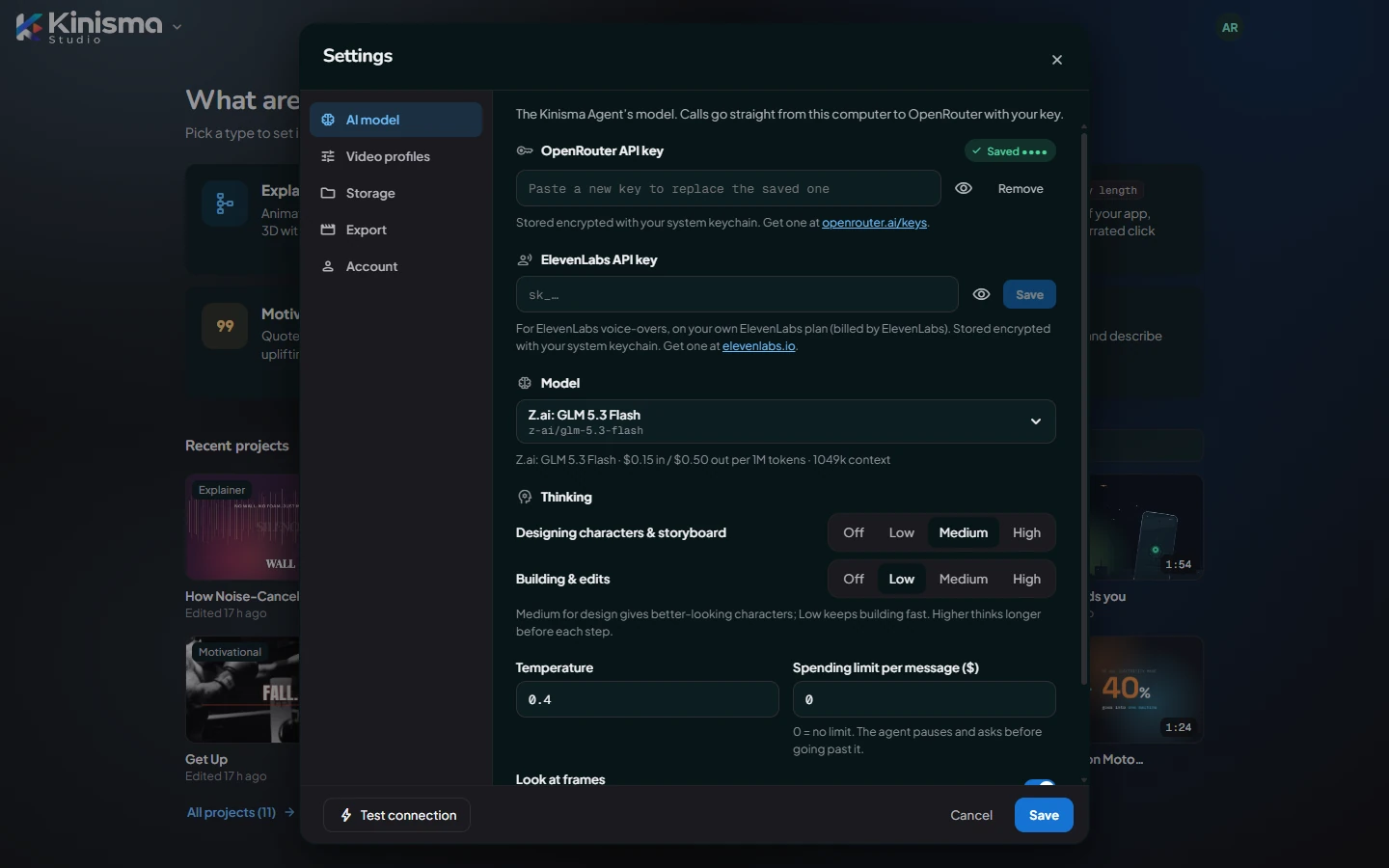
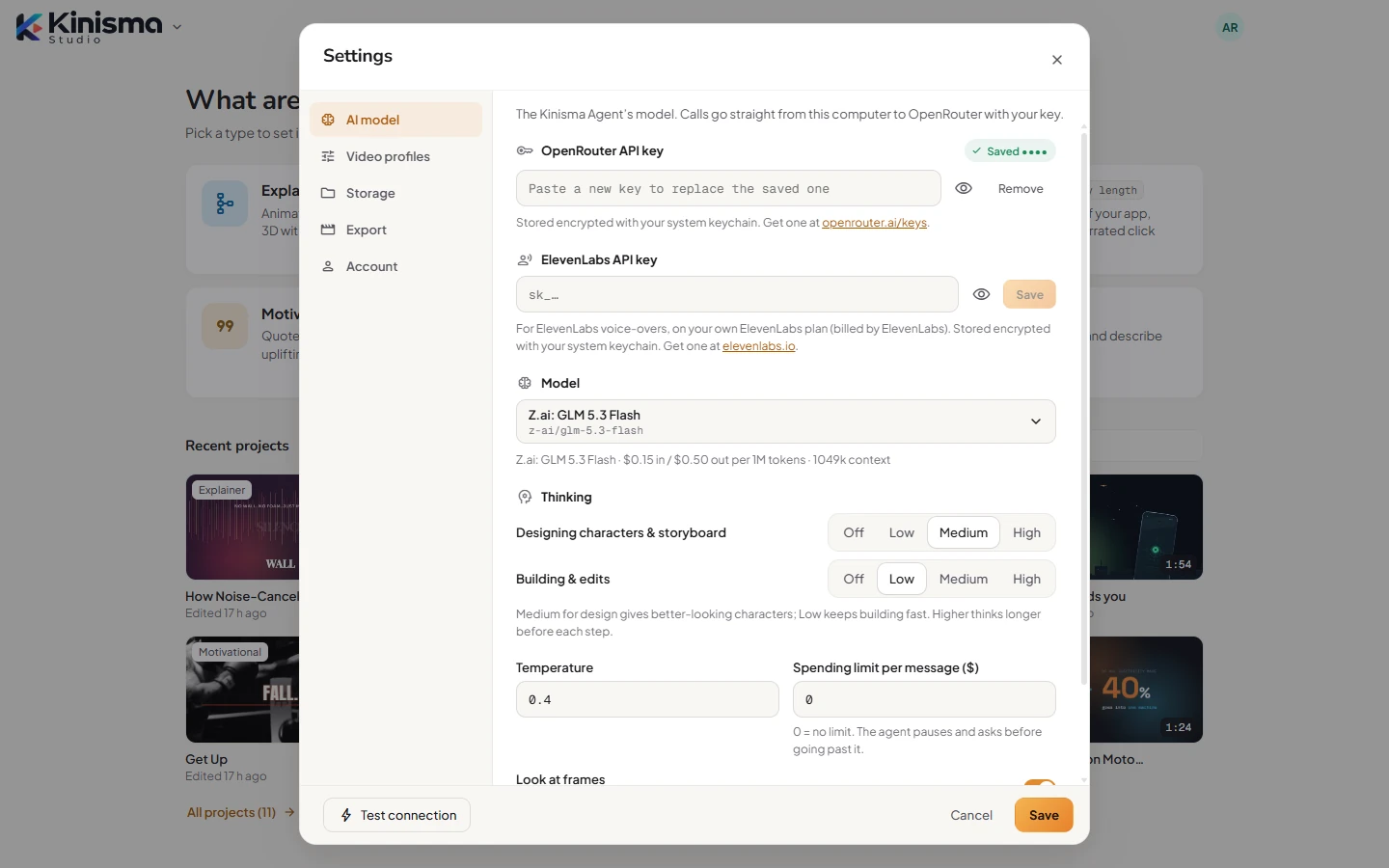
What you see depends on your plan:
- Pay as you go (credits): the AI runs on your Kinisma credits, and the tab shows your balance. No key needed.
- Free and Lifetime (your own key): calls go straight from your computer to OpenRouter with your key.
- OpenRouter API key: paste a key, or replace the saved one. Remove deletes it. Get a key at openrouter.ai/keys.
On every plan:
- ElevenLabs API key: for ElevenLabs voices, on your own ElevenLabs plan. Save checks the key by playing a short sample.
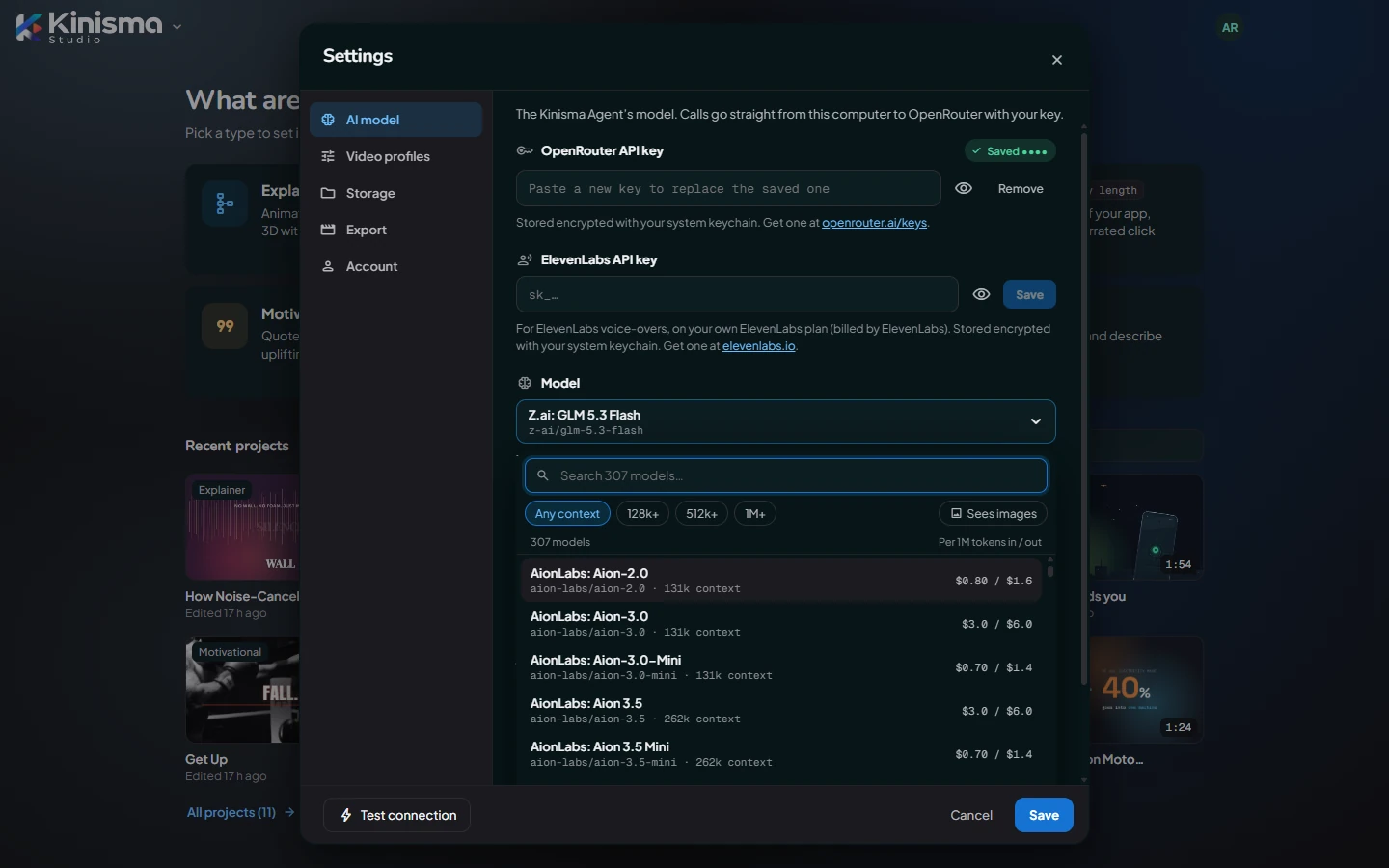
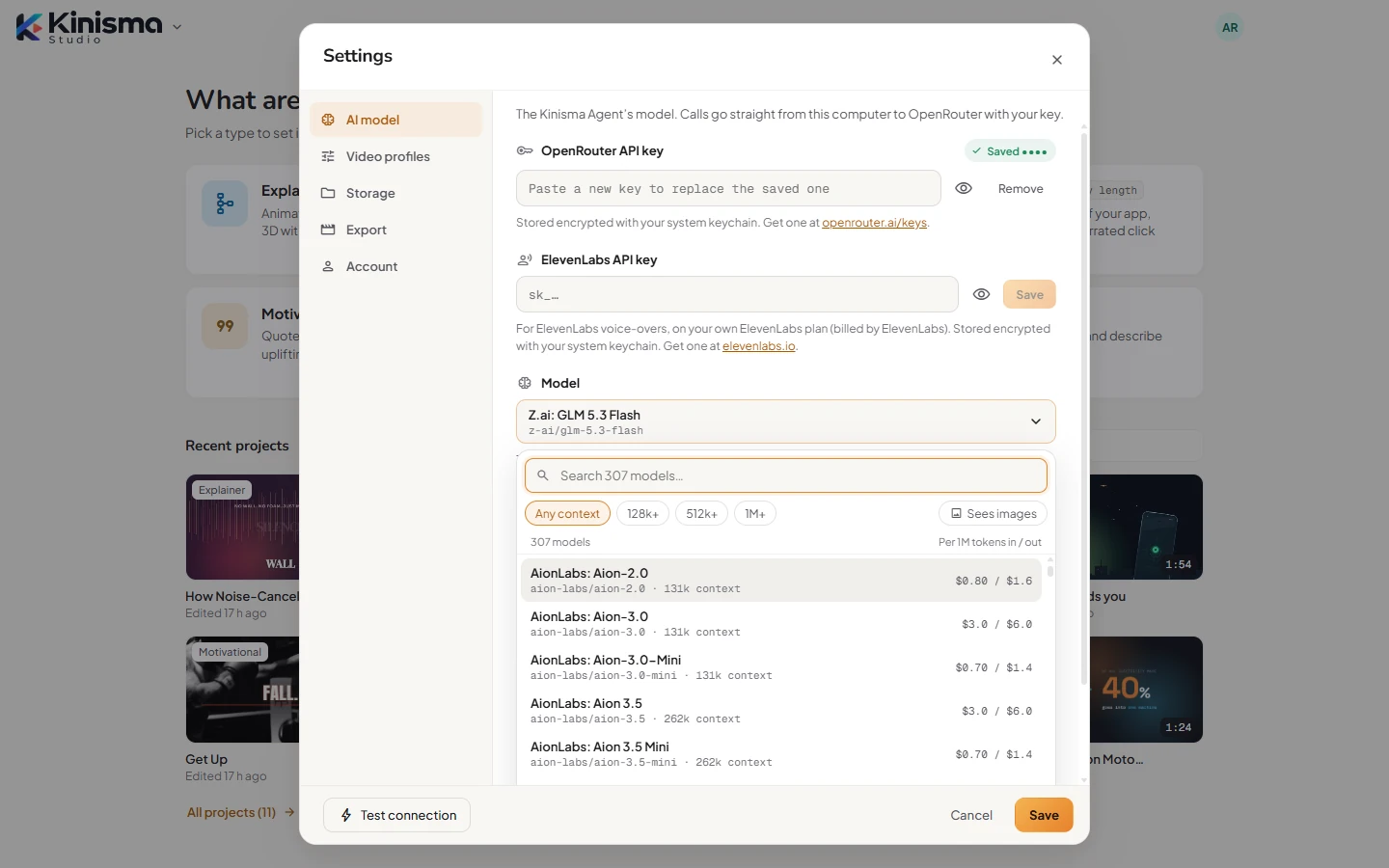
- Model: the AI that runs the Kinisma Agent. Click it to search all models. Filter by context size or Sees images, and compare prices (per million tokens, in credits or dollars). Use default goes back to the recommended model.
- Thinking: how long the model thinks before each step, separately for designing and for building and edits (Off, Low, Medium, High).
- Temperature: higher is more varied, lower more predictable (default 0.4).
- Spending limit per message ($): the agent pauses and asks before one request goes past it. 0 means no limit.
- Look at frames: sends rendered frames back to the model so it can check its own work (recommended).
On own-key plans, Test connection checks your key and model. Click Save to keep your changes.
Keys are stored on your computer, encrypted with your system keychain. See Bring your own key.
Video profiles
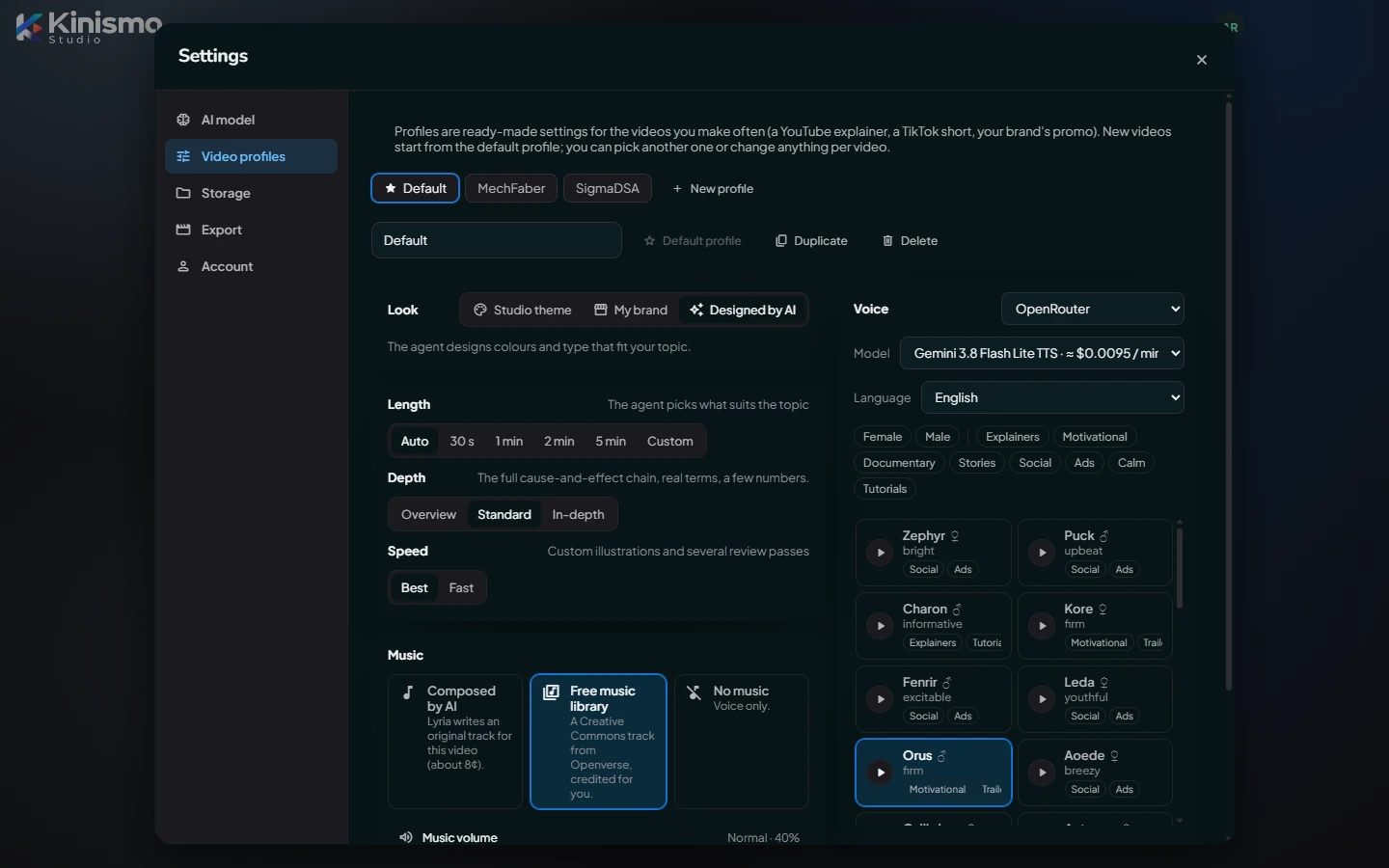
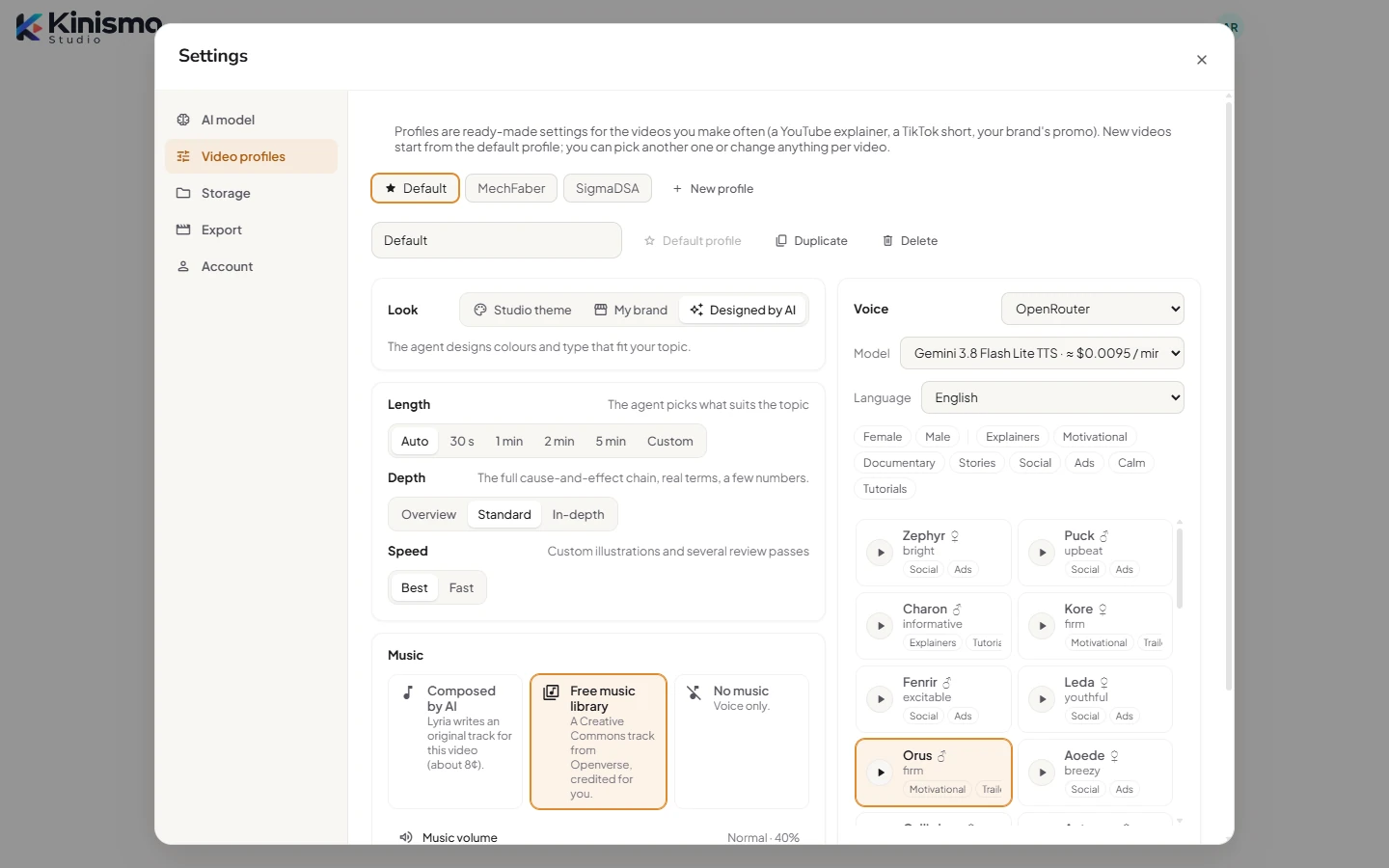
Profiles are ready-made option sets for the videos you make often: a YouTube explainer, a TikTok short, your brand's promo. New videos start from the default profile (★).
- New profile, Duplicate, Delete, and Make default.
- Each profile holds the same options as the New video window, plus an Aspect ratio (or By type).
Click Save profiles to keep your changes.
Storage
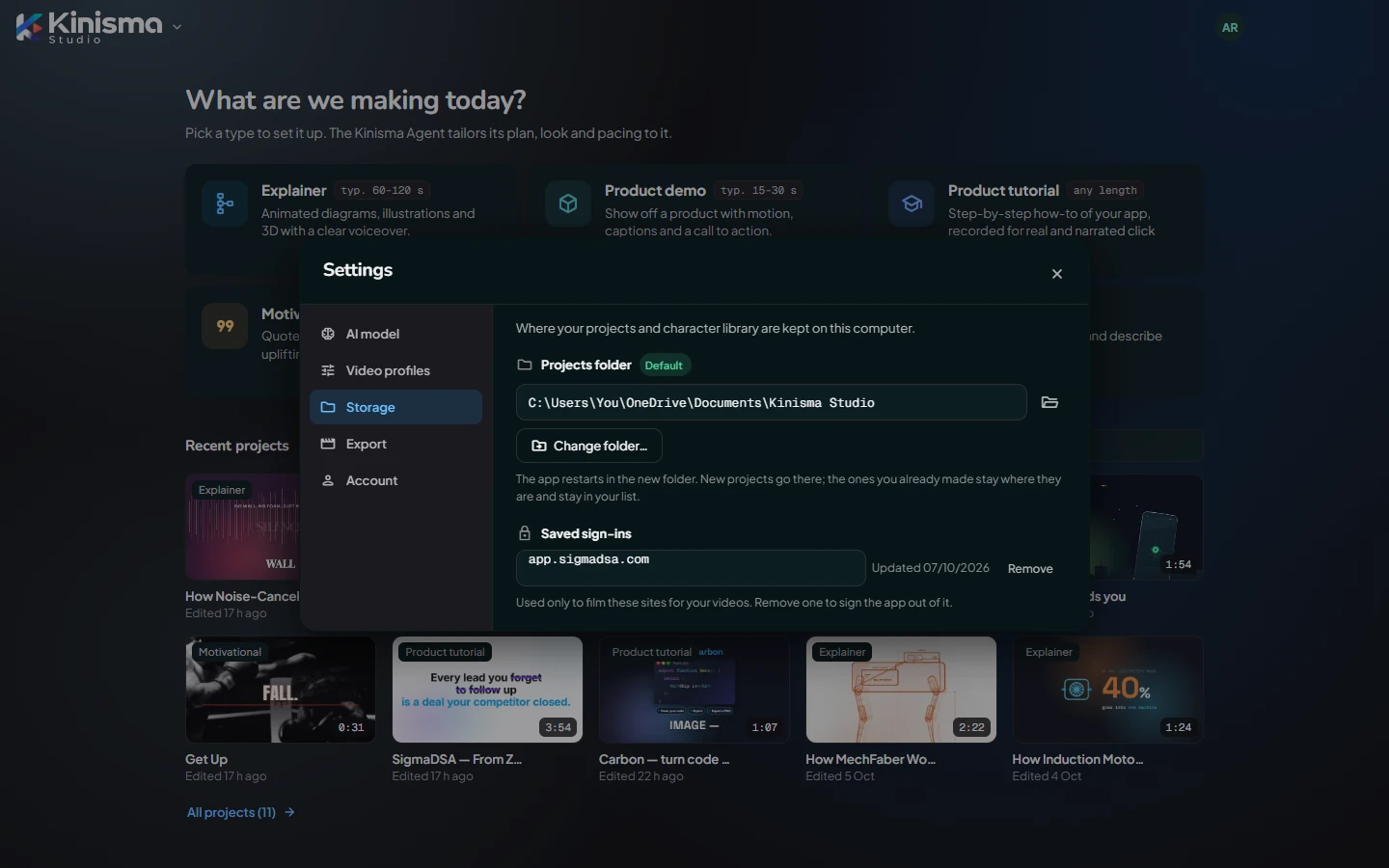
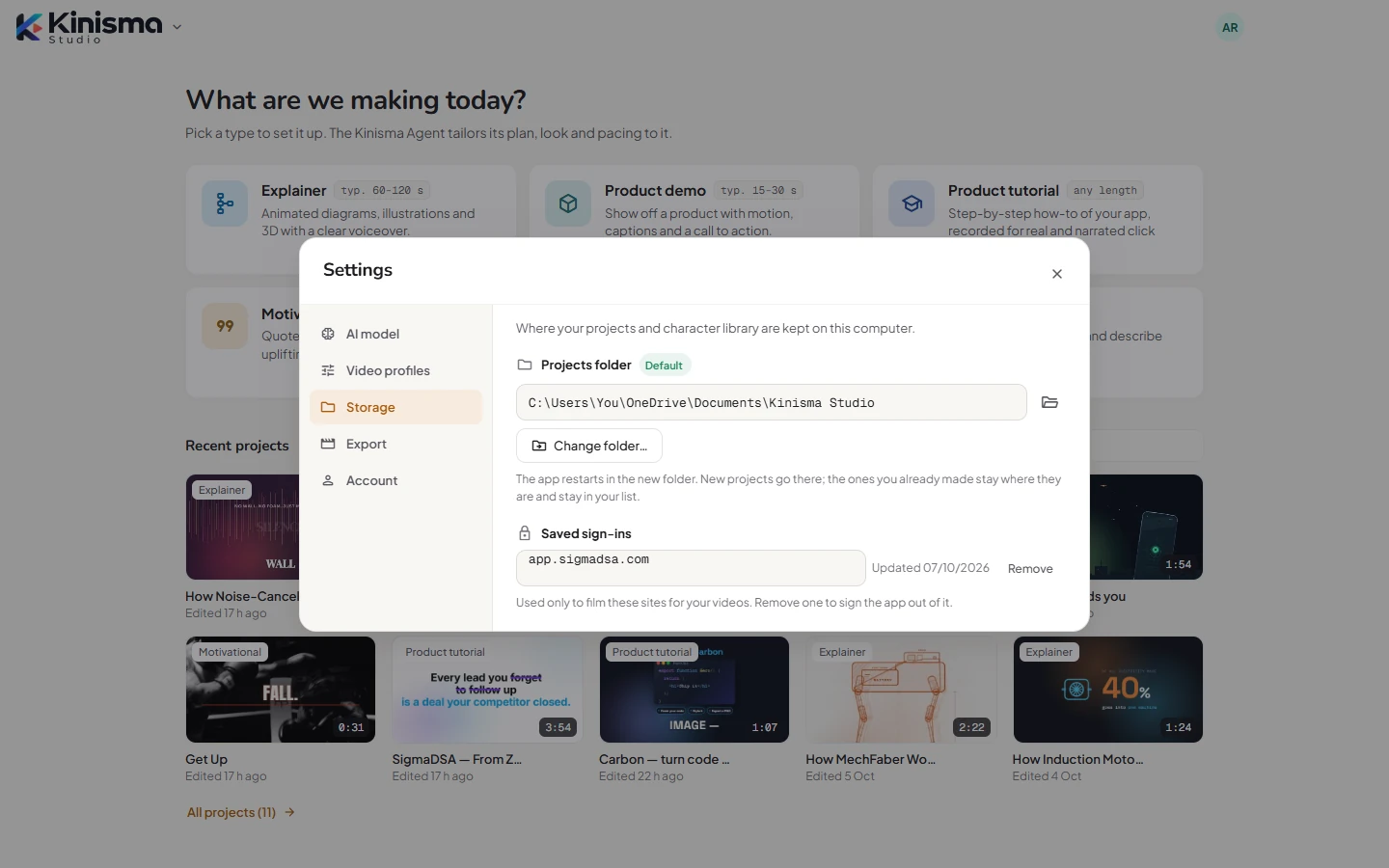
- Projects folder: where your projects are kept (by default
Documents\Kinisma Studio). Show in folder opens it. - Change folder… moves where new projects go. The app restarts in the new folder; existing projects stay where they are and stay in your list. Use the default goes back.
- Saved sign-ins: websites you've signed in to so the agent can film their logged-in screens for product demos and tutorials. Remove signs the app out of a site. See Product demos and tutorials.
More in Projects and files.
Export
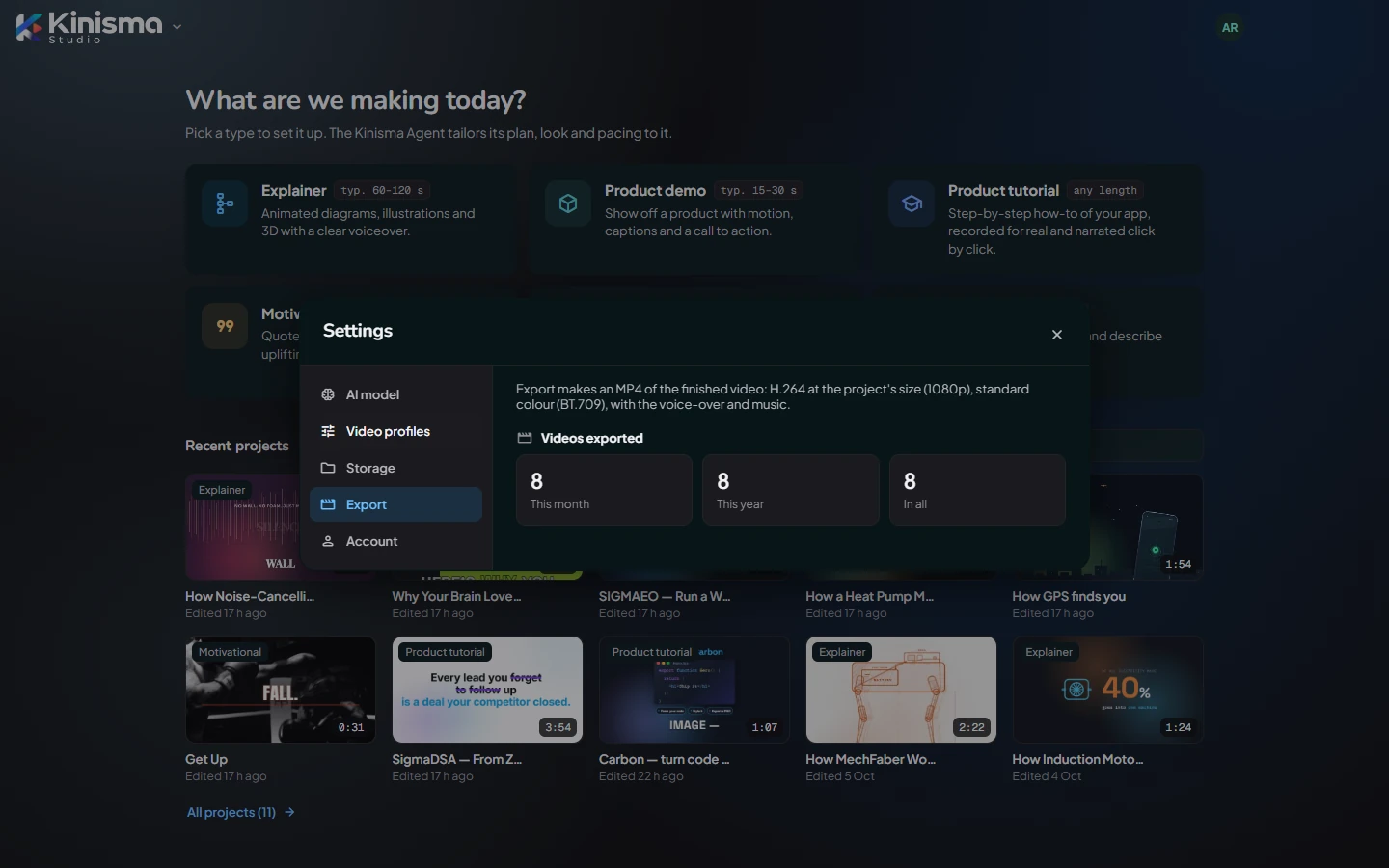
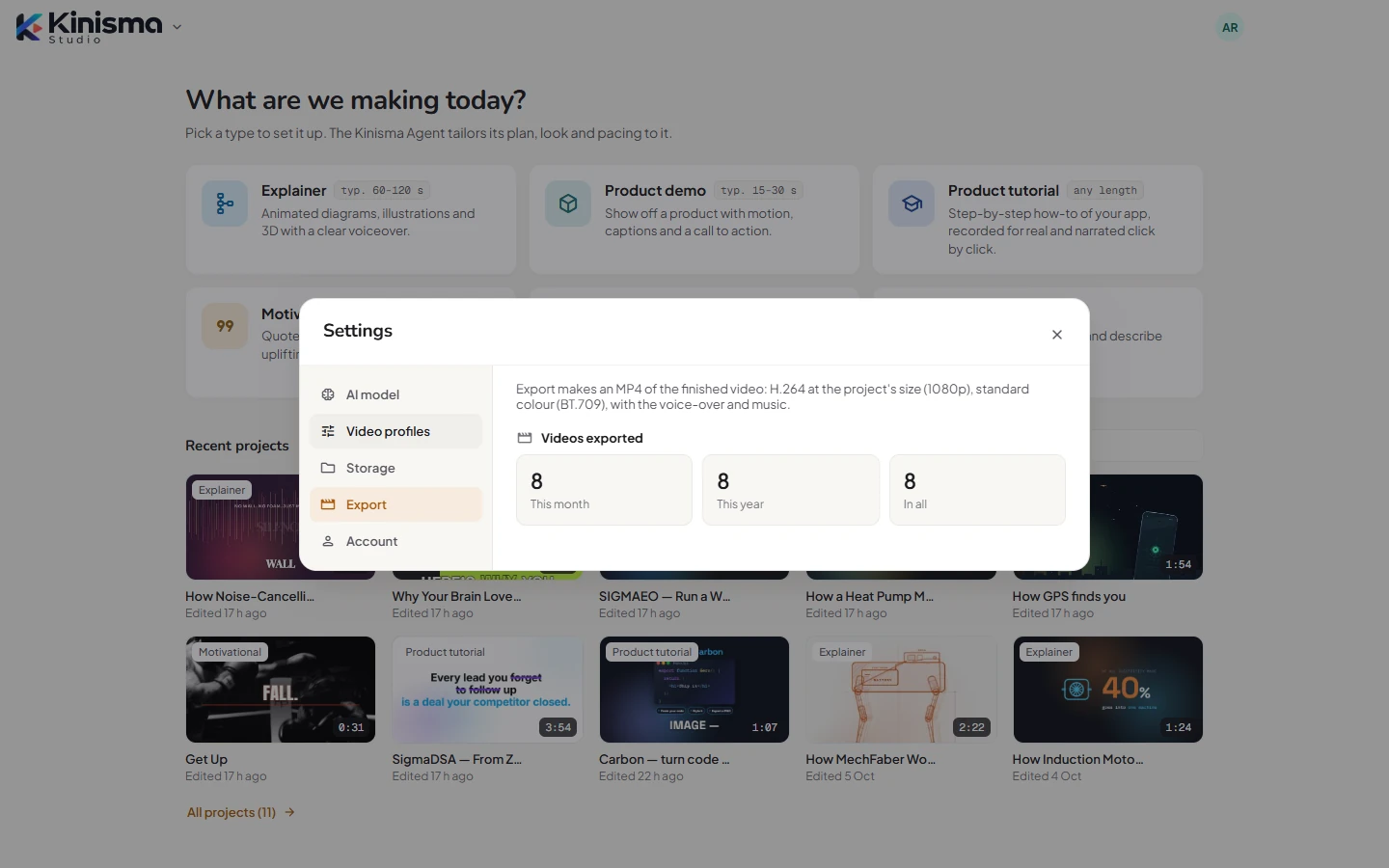
What an export makes (MP4, H.264, BT.709, with voice-over and music) and how many videos you've exported this month, this year and in all.
Account
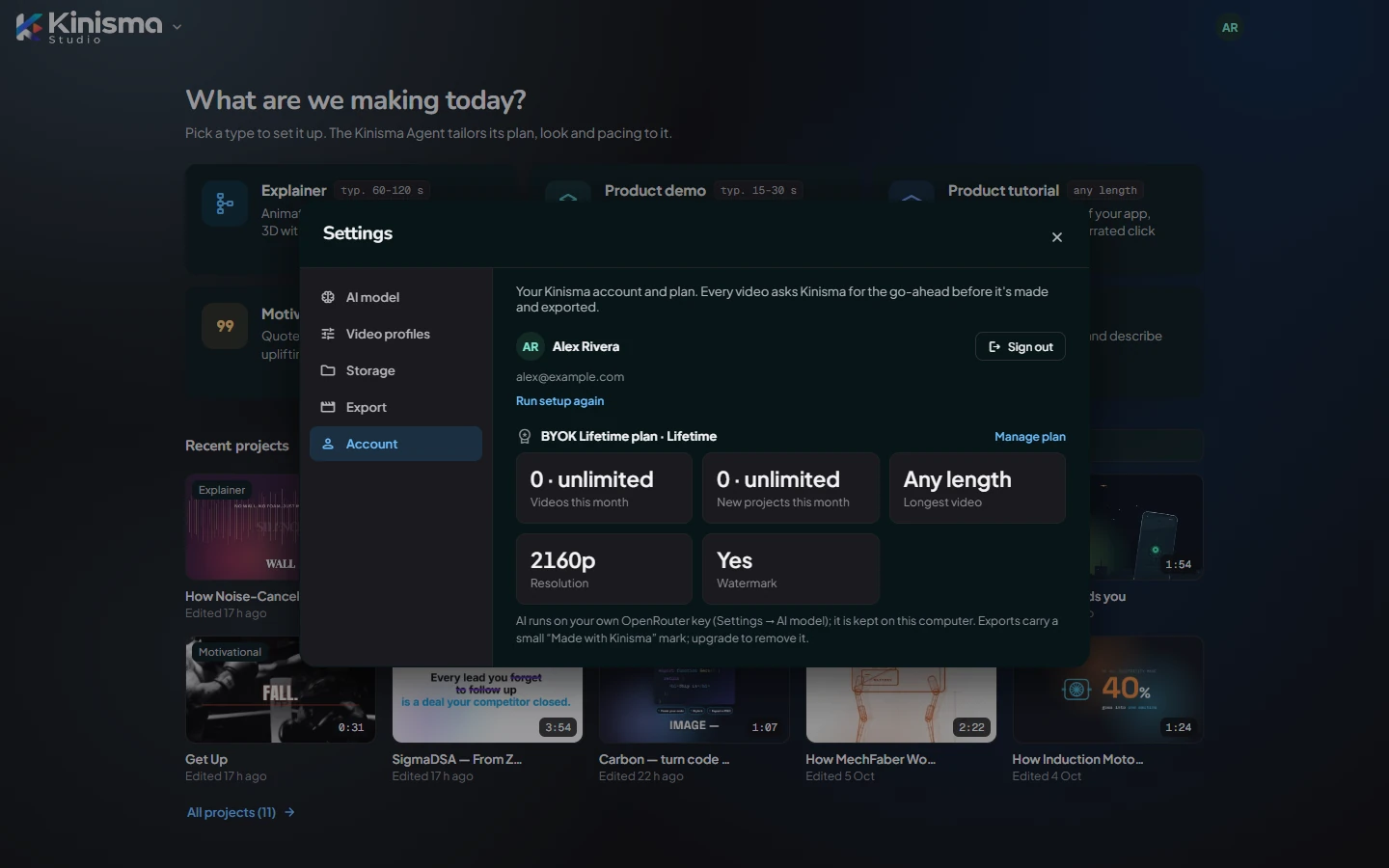
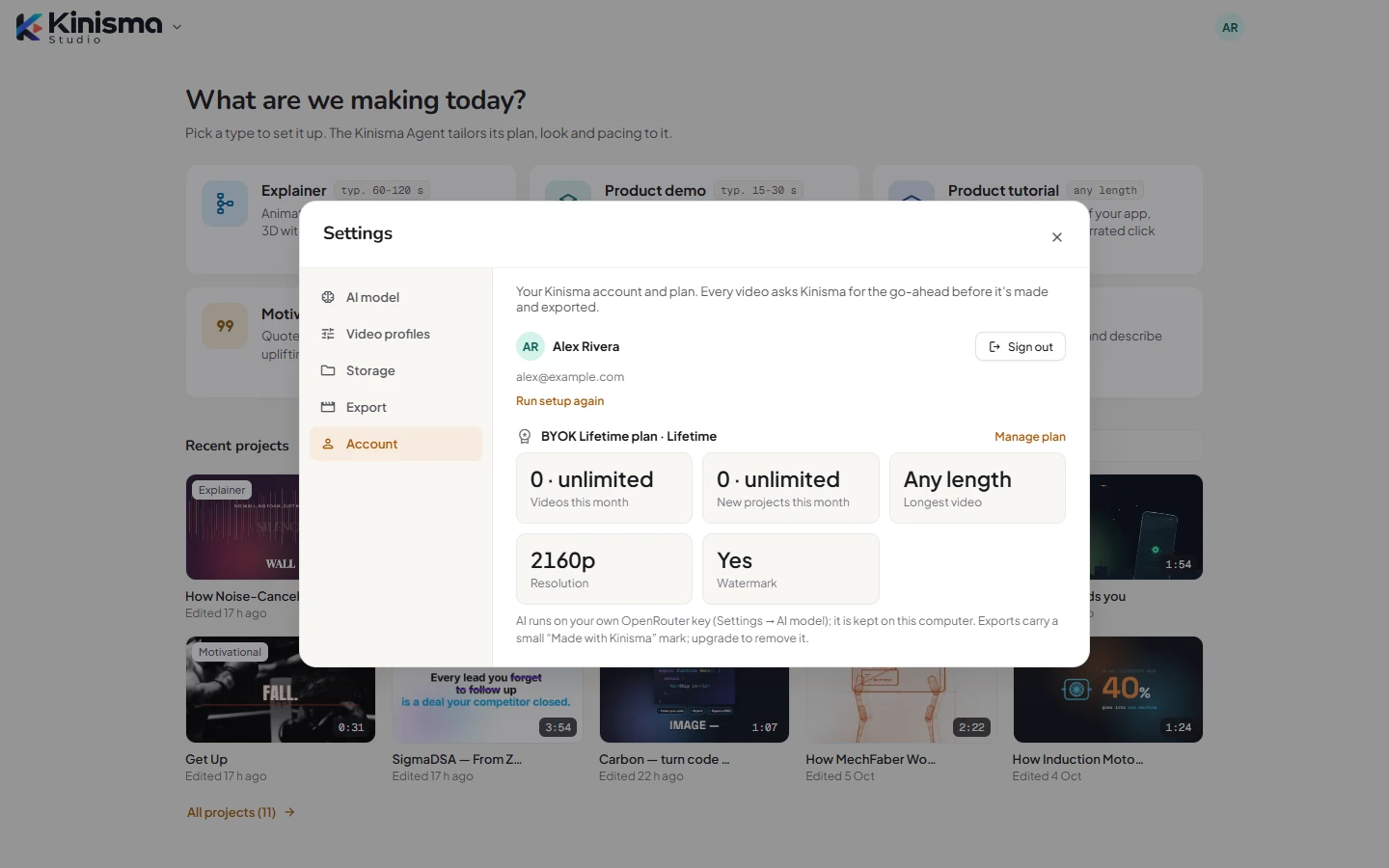
Your name and email, and your plan:
- Videos this month, New projects this month, Longest video, Resolution and Watermark.
- Where the AI runs (credits or your own key), and on credit plans your balance and credit prices for each model.
- Upgrade or Manage plan opens the plans on the website.
- Run setup again and Sign out.
See Plans and credits.
Was this article helpful?