
Menus and shortcuts
Kinisma Studio's main menu, the account menu, light and dark appearance, and every keyboard shortcut.
The main menu
Click the Kinisma logo in the top-left corner (or press ↓ on it).
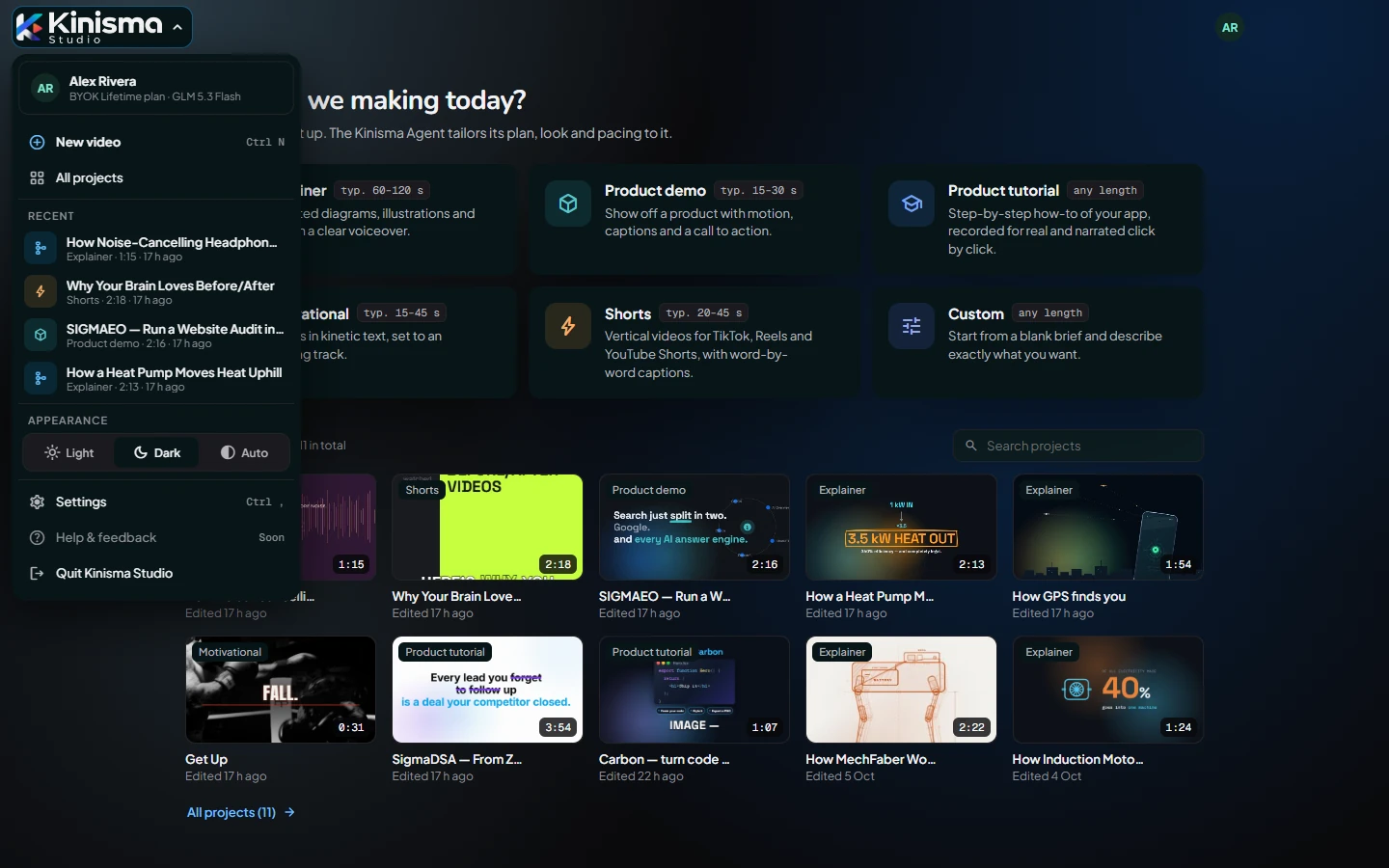
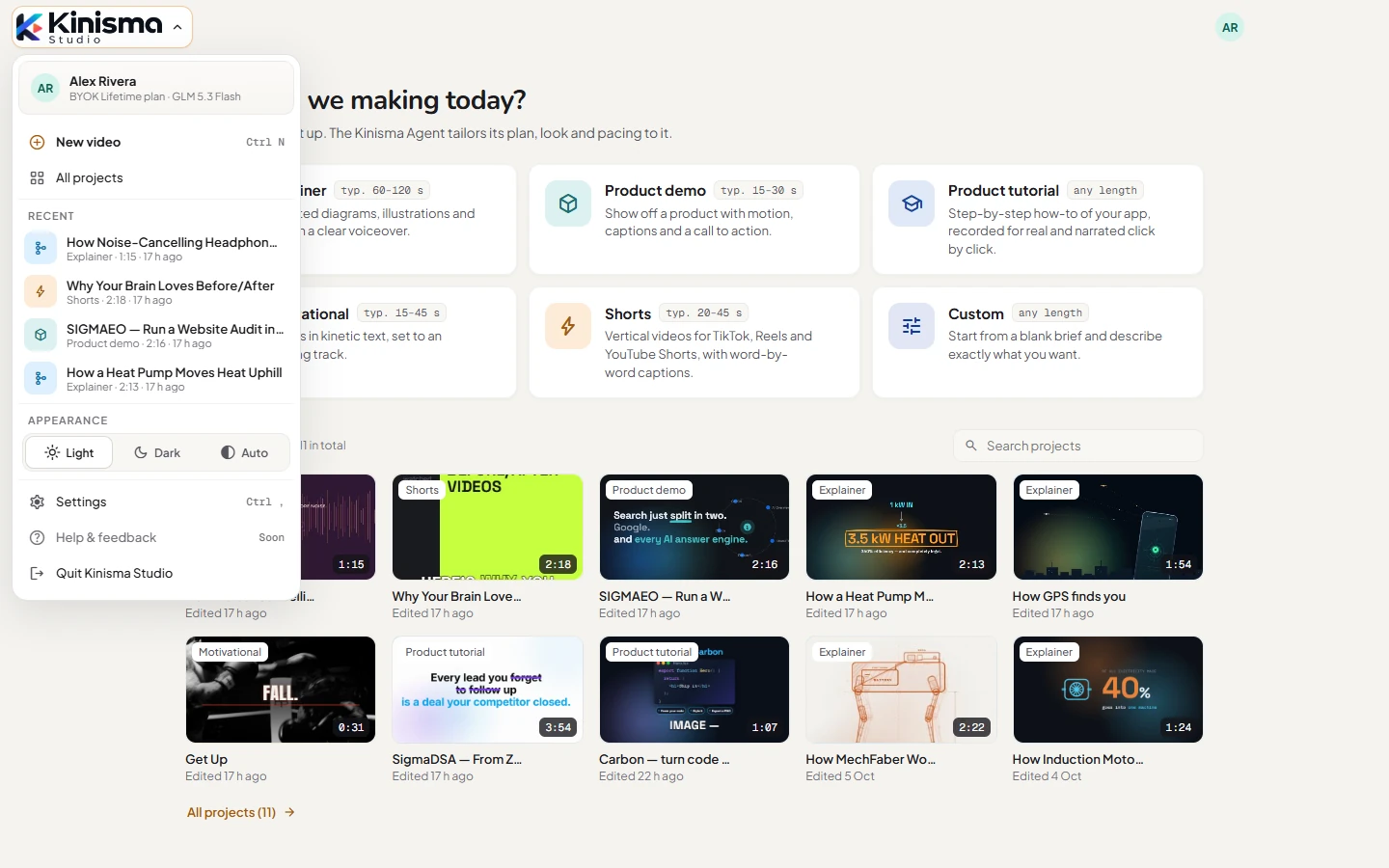
- At the top: your name, your plan, and your credits on pay-as-you-go plans.
- New video (Ctrl N): back to Home to start one.
- All projects.
- Show project folder: while a project is open.
- Recent: your last few projects.
- Appearance: Light, Dark or Auto (follows Windows).
- Settings (Ctrl ,).
- Quit Kinisma Studio.
The account menu
Click your avatar in the top-right corner.
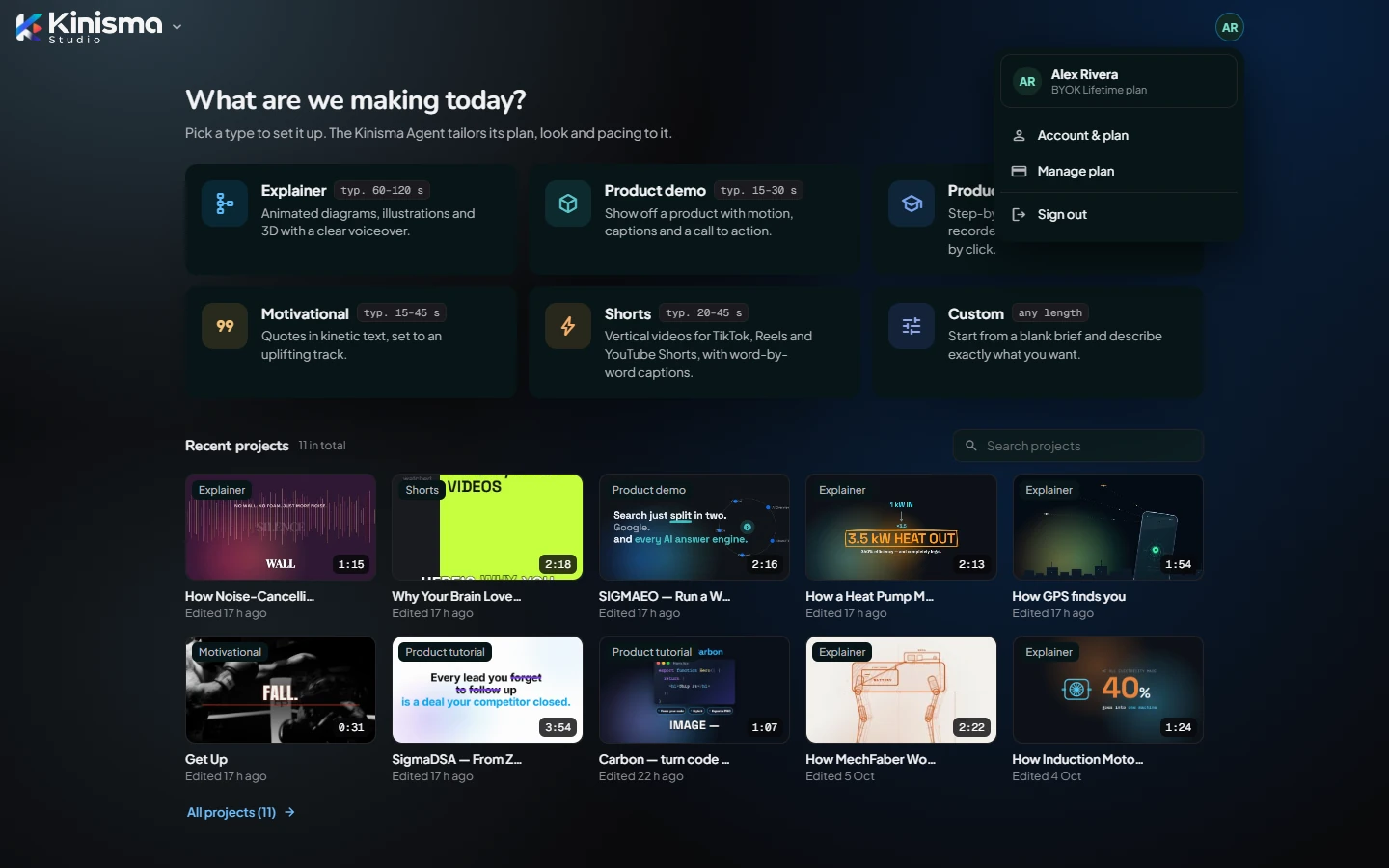
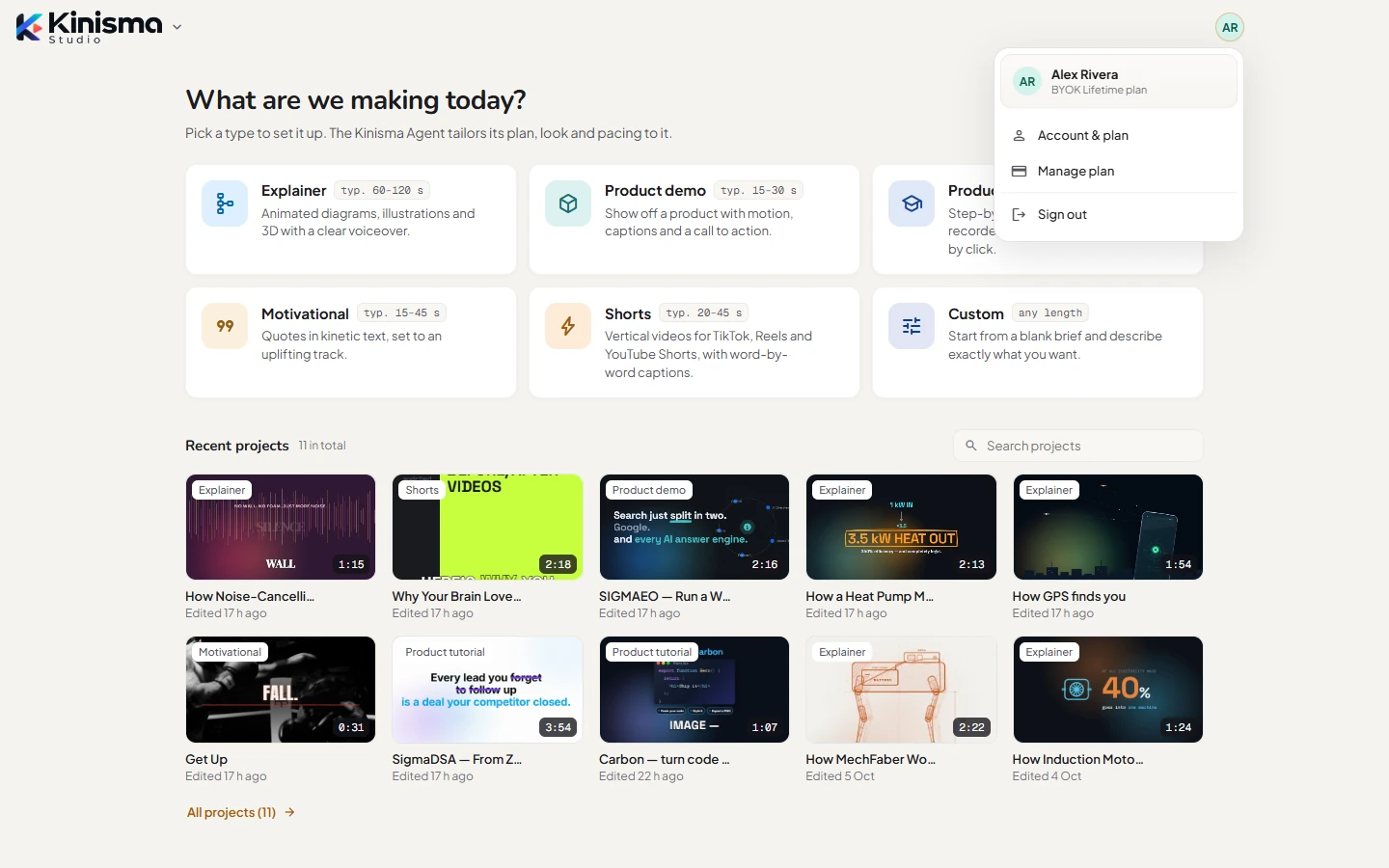
- Account & plan: opens Settings → Account.
- Upgrade (Free), Credits & billing (pay as you go) or Manage plan (others): opens the website.
- Sign out.
Keyboard shortcuts
| Shortcut | Does |
|---|---|
| Ctrl N | New video (goes to Home) |
| Ctrl , | Settings |
| Esc | Close a window or menu; clear the search |
| Enter | Send a chat message |
| Shift Enter | New line in a chat message |
| Space | Play or pause the preview |
| ← / → | Back or forward 1 s in the preview (or the previous/next storyboard panel) |
| Shift ← / → | Back or forward 5 s in the preview |
| Home | Go to the start of the preview |
On a Mac, use Cmd instead of Ctrl.
Was this article helpful?
Still stuck?Write to [email protected] or use the contact page. Tell us your computer (Windows or macOS) and what you tried.