
The publish kit
Let the agent write YouTube titles, descriptions with chapters and tags, Instagram and TikTok captions with hashtags, and thumbnails, then post your video.
The Publish screen writes everything you need to post your video: titles, descriptions, tags, captions, hashtags and thumbnails, tailored to each platform and written from the video's own script.
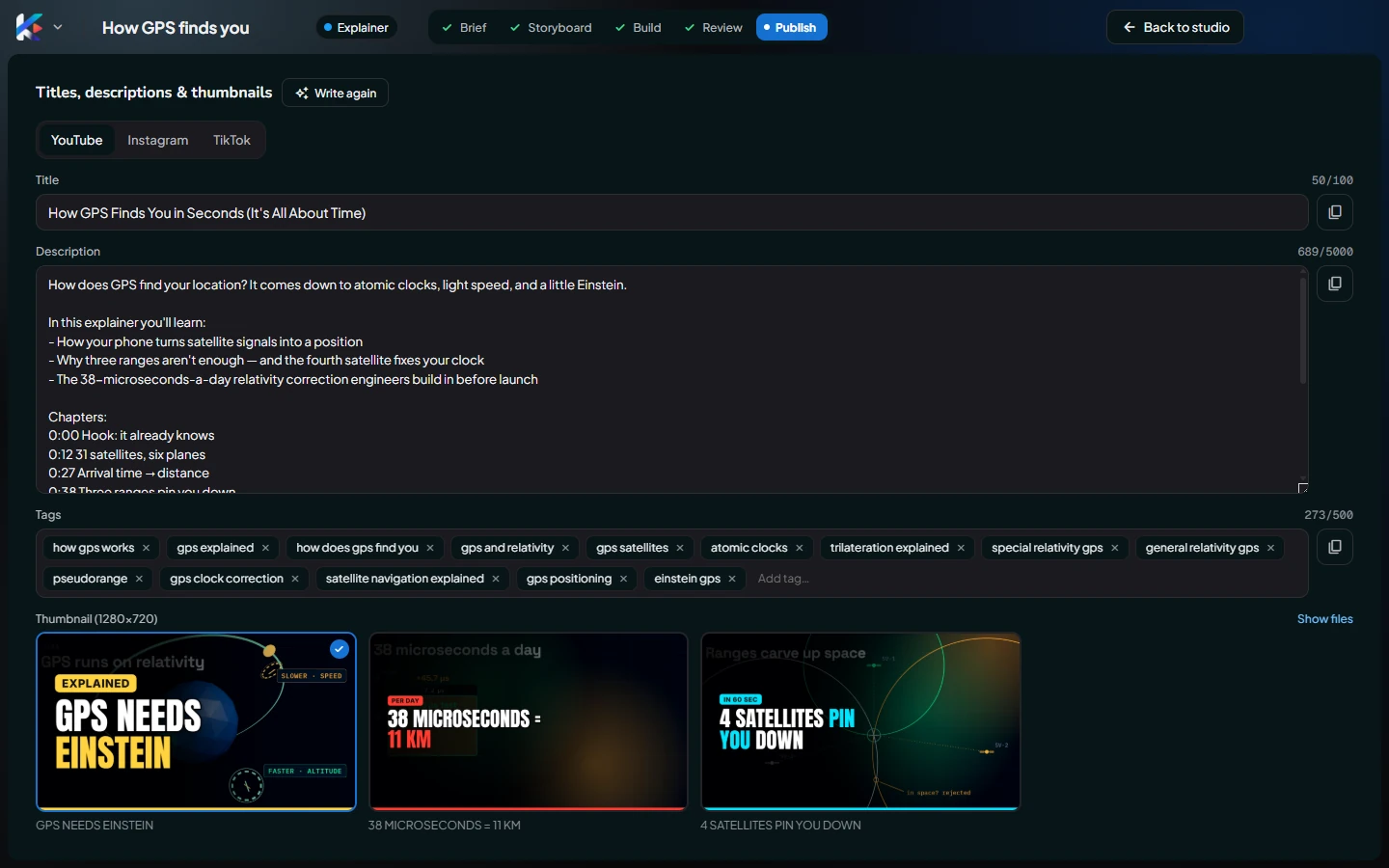
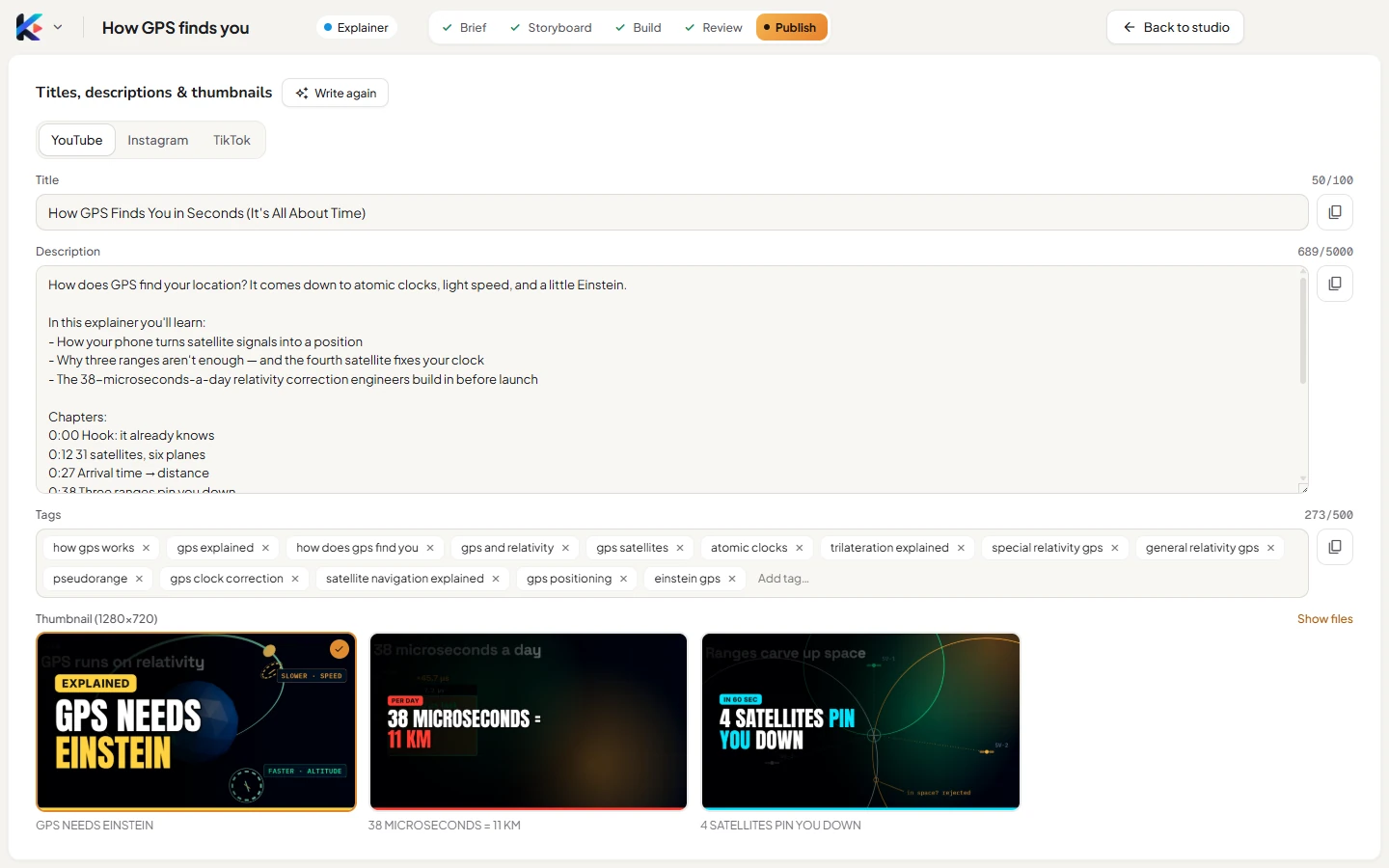
1. Write it
- In the Studio, click Publish.
- Click Write titles & thumbnails. It takes about a minute.
2. Review and edit
Everything is editable and saves as you type.
- YouTube: a title (about 70 characters show in search), a description with chapters, and tags.
- Instagram: a caption with a strong first line, plus hashtags.
- TikTok: a short caption, plus hashtags.
- Thumbnails: three designs on real frames of your video. Click one to choose it.


Not keen on the result? Write again writes everything from scratch (it replaces your edits).
3. Post your video
- Export the video.
- Upload it on YouTube, Instagram or TikTok.
- Paste the text with the Copy buttons: Copy title, Copy description and Copy tags for YouTube; Copy caption with hashtags for Instagram and TikTok.
- Upload the thumbnail or cover: Show files opens the folder with the PNGs, 1280×720 for YouTube and 1080×1920 covers for Reels and TikTok.
More about the screen in Publish.
Questions
Does Kinisma upload the video for me?
Not from the app yet. Copy the text and thumbnail from the Publish screen into YouTube, Instagram or TikTok. To track published videos, connect your channels in the web dashboard.
Will the description work for YouTube chapters?
Yes. The chapters come from the real scene times and follow YouTube's rules (at least three, each 10 seconds or longer, starting at 0:00).
Was this article helpful?