
Work with the agent
Brief the Kinisma Agent well, brainstorm first, approve the storyboard, ask for changes to the whole video or one scene, add files, and stop or continue.
The Kinisma Agent is a video team in a chat: it researches, writes, designs, narrates, animates and checks its own work. Here's how to get the most from it.
1. Brainstorm (optional)
A new project starts in Brainstorm: talk the idea through and nothing is made. Ask for "5 video ideas about…", "a hook for…" or "who should this be for?". When you like an idea, click Make this video: the agent writes a brief from your conversation and starts.
2. Write a good brief
In Make video mode, describe the video. Good briefs say:
- The topic: "how GPS finds your position".
- Who it's for: "for curious non-engineers".
- What they should take away: "that it's all about timing".
- Anything that matters to you: tone, length, a call to action, facts to include, a site to use.
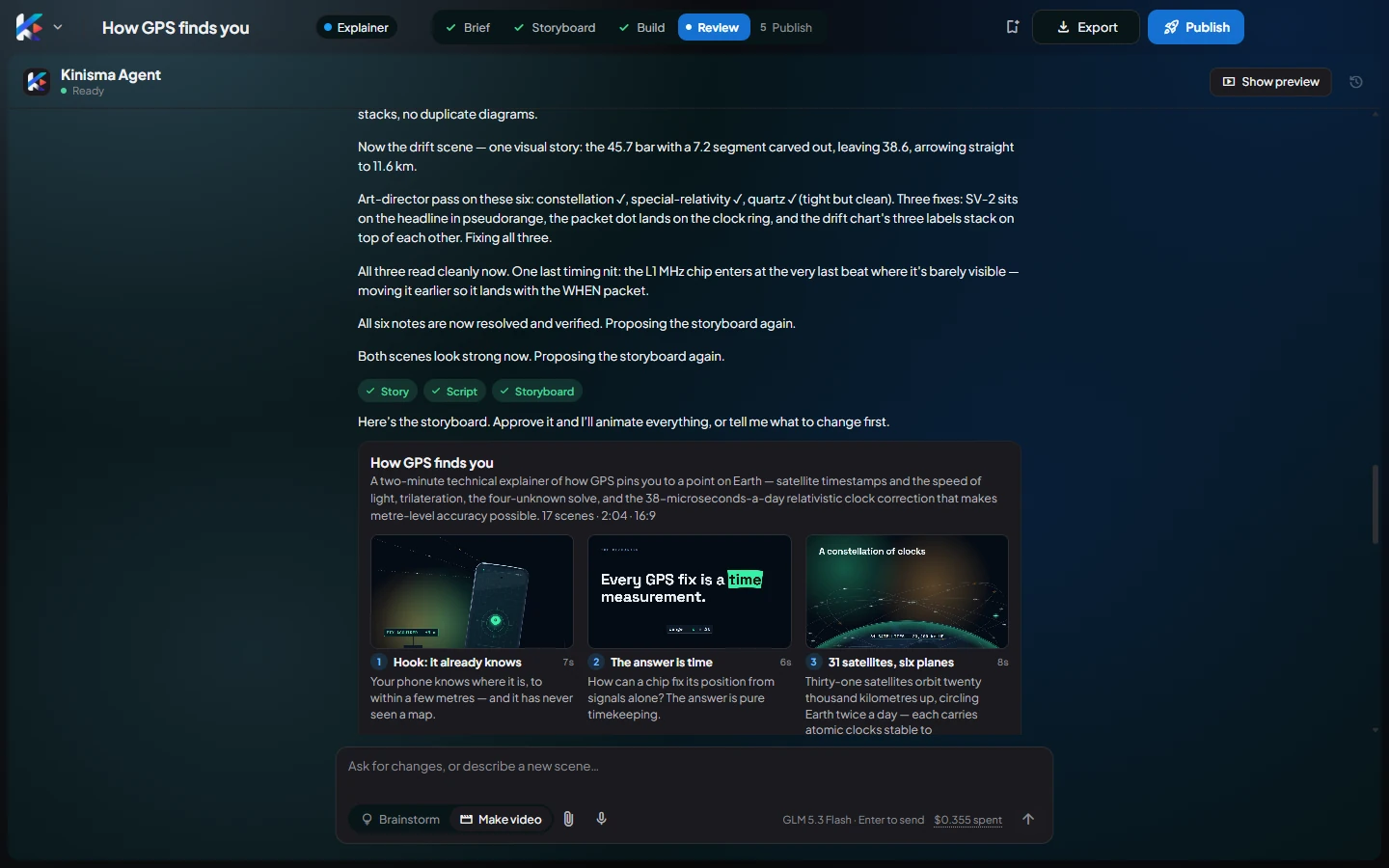
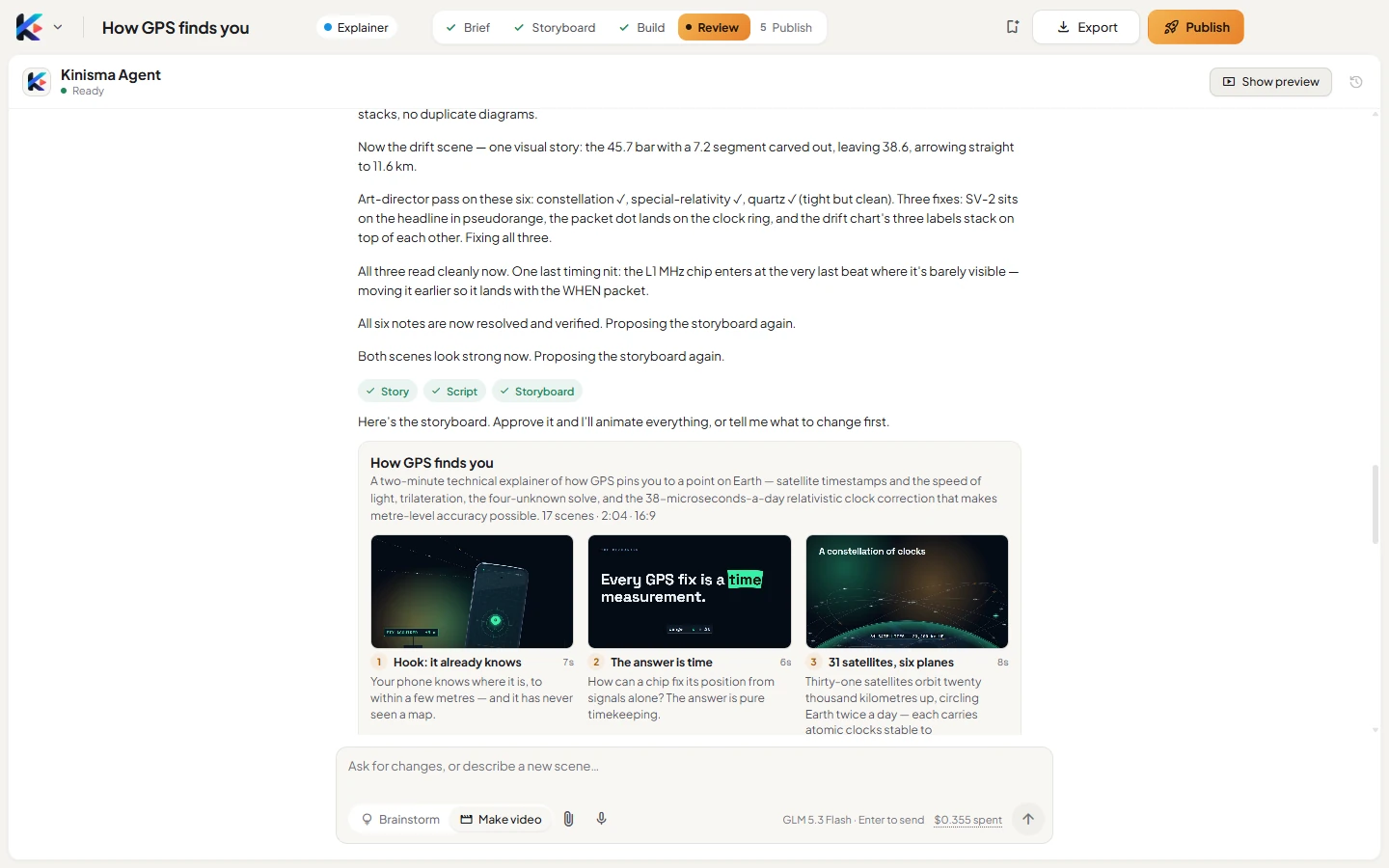
3. Approve the storyboard
The agent plans every scene and shows a storyboard. Read it, ask for changes in plain words, and click Approve storyboard when it's right. This is the best time for big changes.
4. Change the finished video
Once the video is built, ask for anything in the chat:
- The whole video: "make it 30 seconds shorter", "use a warmer palette", "slow the narration a little".
- One scene: select it (in the bar under the preview or in Assets), then say what to change: "make the chart bigger", "add a label for the satellite".
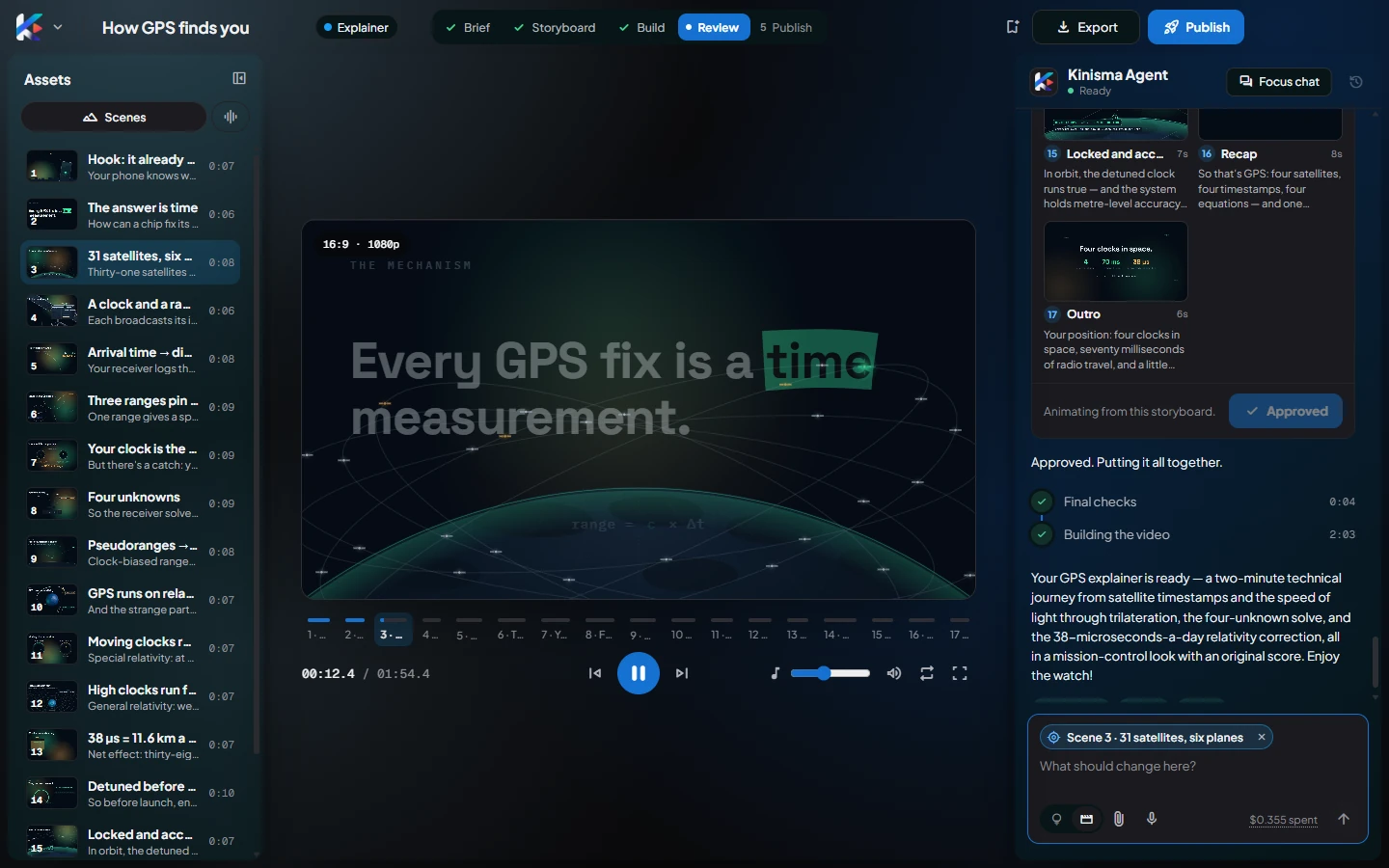
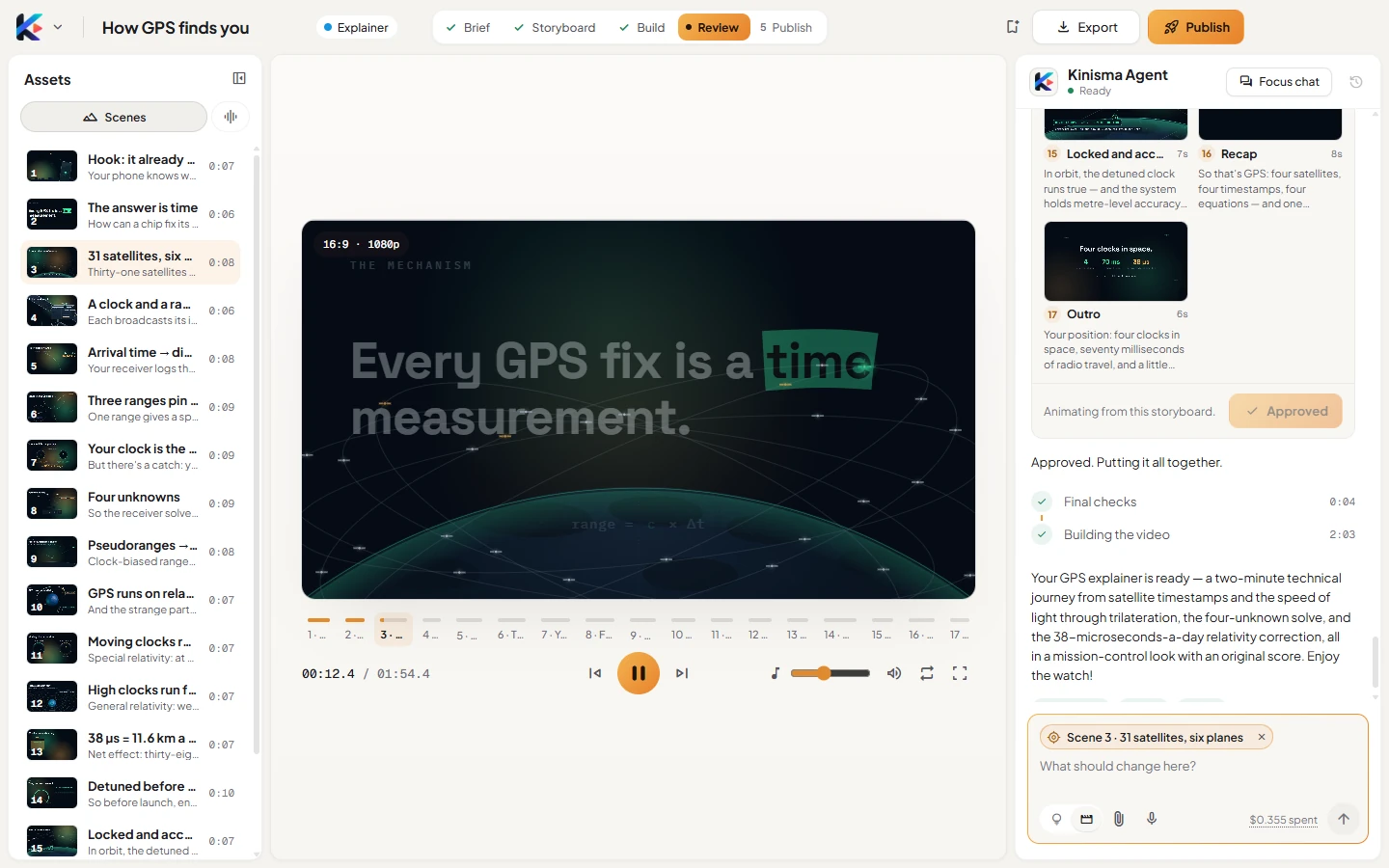
The agent updates only what's needed and keeps playing the old version until the new one is ready.
5. Give it material
Attach files with the paperclip or drop them on the chat: your logo, screenshots, product photos, footage, or a document with facts and wording (txt, md, csv, json, srt, vtt, html). Up to 10 files per message. Tell the agent what to do with them: "use this photo in scene 2".
Stop and continue
Click Stop while it works. Say "continue" to pick up where it left off. That also works if the app was closed mid-job.
Costs and limits
The $… spent link under the message box shows what the AI has cost on this video. The Spending limit per message in Settings → AI model makes the agent pause and ask before going past it.
More about the chat in Agent chat.
Questions
What should I put in my first message?
The topic, who it's for and what they should take away. Add the tone or a length if you care. One or two sentences is enough.
The agent paused and asked about a limit. What happened?
One request reached your spending limit per message (Settings → AI model). Say continue to carry on, or raise the limit.
Was this article helpful?