
Preview and assets
The Studio's preview player (play, scenes, music volume, loop, full screen, shortcuts) and the Assets panel with the video's scenes, narration and music.
The middle of the Studio plays your video. The panel on its left lists what the video is made of.
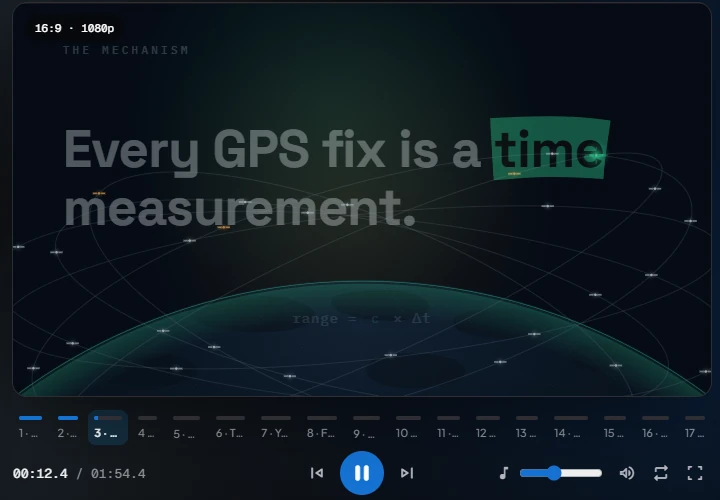
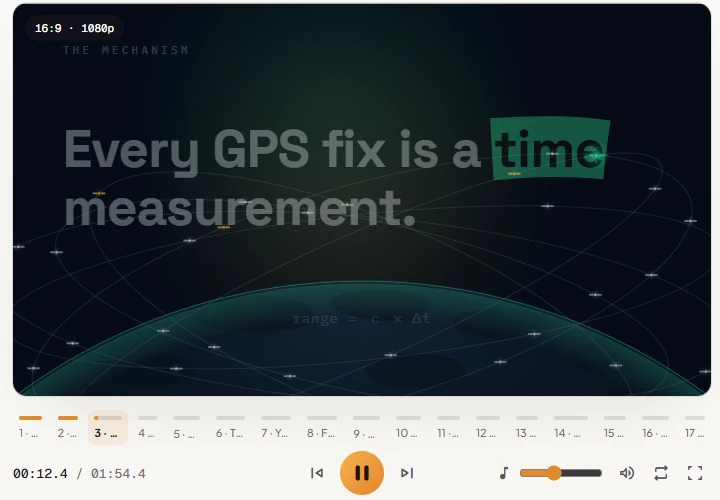
The preview
The badge in the corner shows the video's shape and resolution, for example 16:9 · 1080p. While the agent is still drafting, it reads Draft · approve to finish.
The scene bar
Under the picture, one segment per scene, numbered. Click a segment to jump to that scene and select it for a chat edit; click it again to deselect it.
The controls


- The time: where you are, and the video's length.
- Go to start, Play / pause, Go to end.
- Music volume: how loud the music sits under the voice. It changes the video itself, including exports.
- Mute, Loop and Full screen.
While the agent updates the video, the previous version keeps playing until the new one is ready.
Keyboard
| Key | Does |
|---|---|
| Space | Play or pause |
| ← / → | Back or forward 1 second |
| Shift + ← / → | Back or forward 5 seconds |
| Home | Go to the start |
Assets
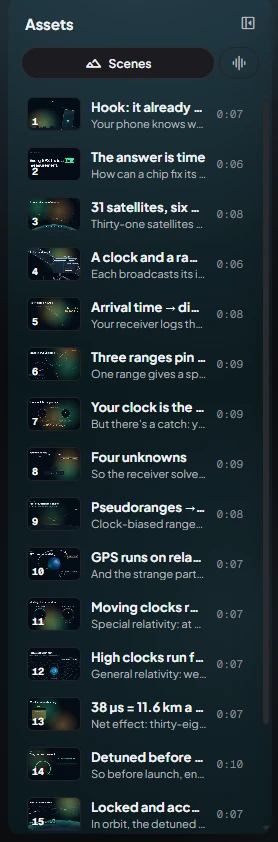
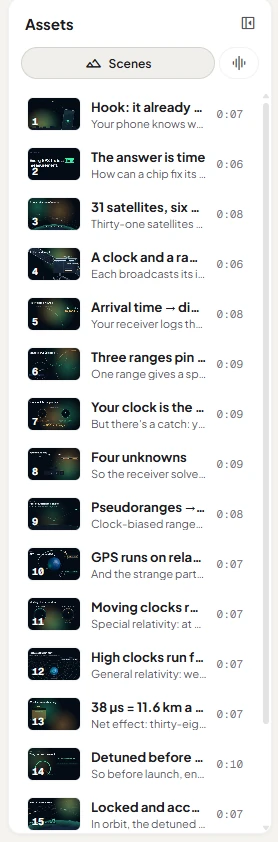
The panel on the left has two tabs.
Scenes: every scene with a thumbnail, its title, a summary and its length. Click a scene to jump to it, play it and select it for a chat edit.
Audio:
- Narration: the voice clip of each scene. Click ▶ to listen.
- Music: the background track, where it came from, and the music volume.
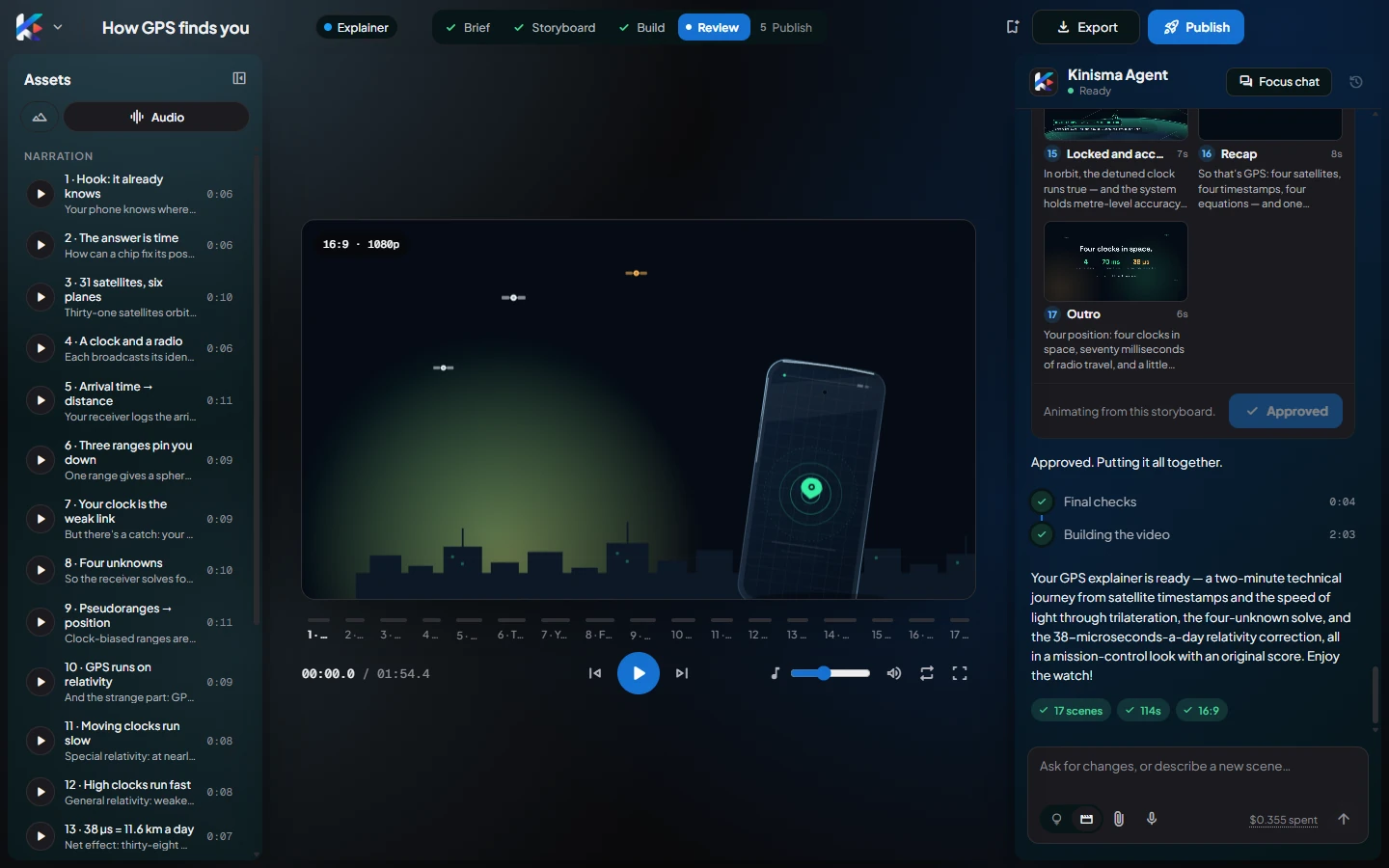
Collapse the panel with the button in its header for a bigger preview.
Was this article helpful?