Sign in and set up
Sign in to Kinisma Studio through your browser with Google or email, check your plan, and connect your AI if your plan uses your own key.
The first time you open Kinisma Studio, a short setup asks you to sign in, shows what your plan includes and, on plans that use your own AI key, connects it. It takes about a minute.
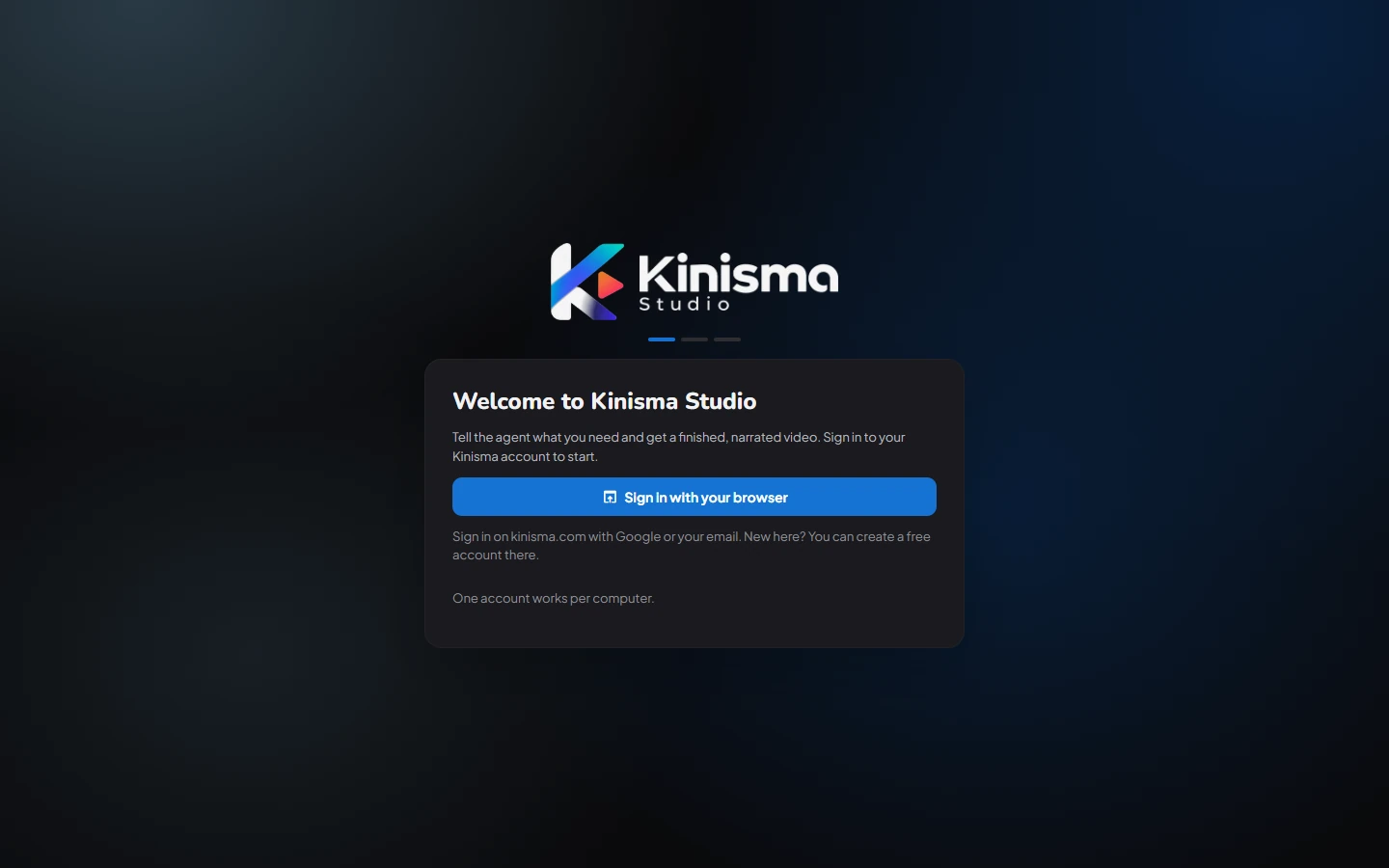
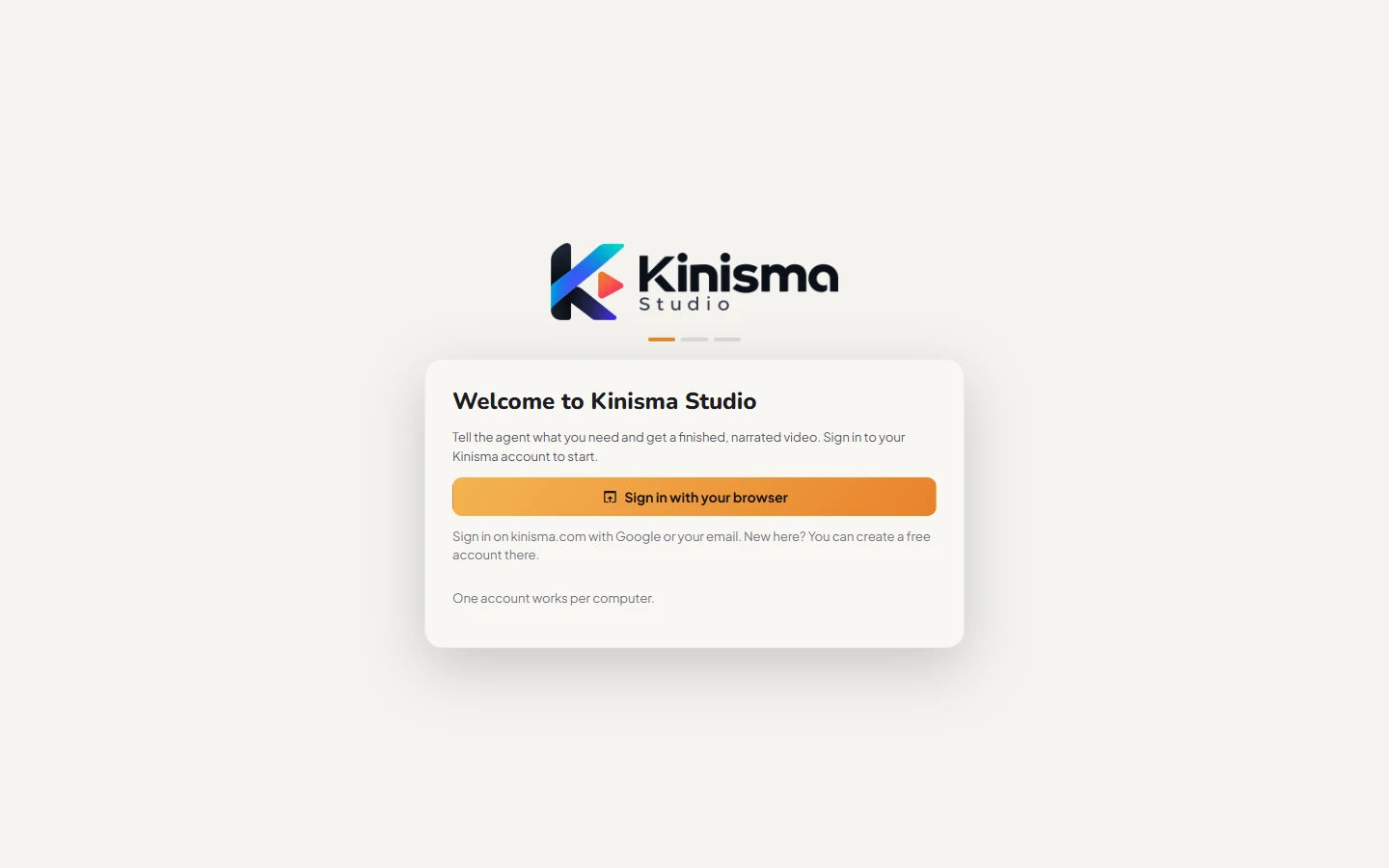
1. Sign in with your browser
- Click Sign in with your browser. Your browser opens kinisma.com.
- Sign in with Google or with your email and password. Already signed in on the website? Just click Continue to Kinisma Studio.
- Your browser asks to open Kinisma Studio. Click Open Kinisma Studio.
You're back in the app, signed in. No account yet? Create one on the same page; see Create your Kinisma account.
2. Check your plan
The next step greets you and shows what your plan includes:
| Shown | What it means |
|---|---|
| Videos a month | How many videos you can export each month. |
| New projects a month | How many new projects you can start each month. |
| Longest video | The longest video your plan can export. |
| Resolution | The highest export resolution. |
| Watermark | Whether exports carry a small "Made with Kinisma" mark. |
It also says where the AI runs:
- Pay as you go: the AI runs on your Kinisma credits. No key needed. Credits never expire; buy more on the website.
- Free and Lifetime: the AI runs on your own OpenRouter key, so you pay OpenRouter directly, at cost. You connect it on the next step.
On the Free plan you'll also see an offer to upgrade. Click Continue with Free to carry on, or Upgrade to compare plans on the website (then I've upgraded: check again). See Plans and credits.
3. Connect your AI (Free and Lifetime plans)
Kinisma's agent writes, designs and narrates with AI models on OpenRouter. On plans that use your own key:
- Click Connect OpenRouter. Your browser opens OpenRouter.
- Sign in to OpenRouter (or create an account) and allow Kinisma Studio. OpenRouter creates a key for the app.
- Back in the app you'll see OpenRouter is connected and answered a test call.
- Click Start making videos.
Already have an OpenRouter key? Choose Or paste an API key, paste it and click Save & test.
The key is stored on your computer, encrypted with your system keychain. A typical video costs cents on OpenRouter. See Bring your own key.
Run the setup again
Open Settings → Account and click Run setup again. Signing out also brings you back to the sign-in step.
Next
Questions
Can I sign in with a username and password inside the app?
No. Kinisma Studio always signs you in through kinisma.com in your browser, so it works the same with Google or with your email and password, and your password never goes into the app.
My browser asks to open Kinisma Studio. Is that safe?
Yes. That is how kinisma.com hands the sign-in back to the app. Click Open Kinisma Studio. You can tick 'Always allow' so it doesn't ask again.
Signing in through the browser says it took too long.
The app waits 10 minutes for the browser. Click Sign in with your browser again and finish on kinisma.com within that time.
Was this article helpful?