
Storyboard
The storyboard the agent shows before building, with each scene's sketch, title, length and narration, and how to approve it or ask for changes.
Before it animates anything, the agent shows you a storyboard: the whole video, scene by scene. It's the cheapest moment to change the story, so take a look.
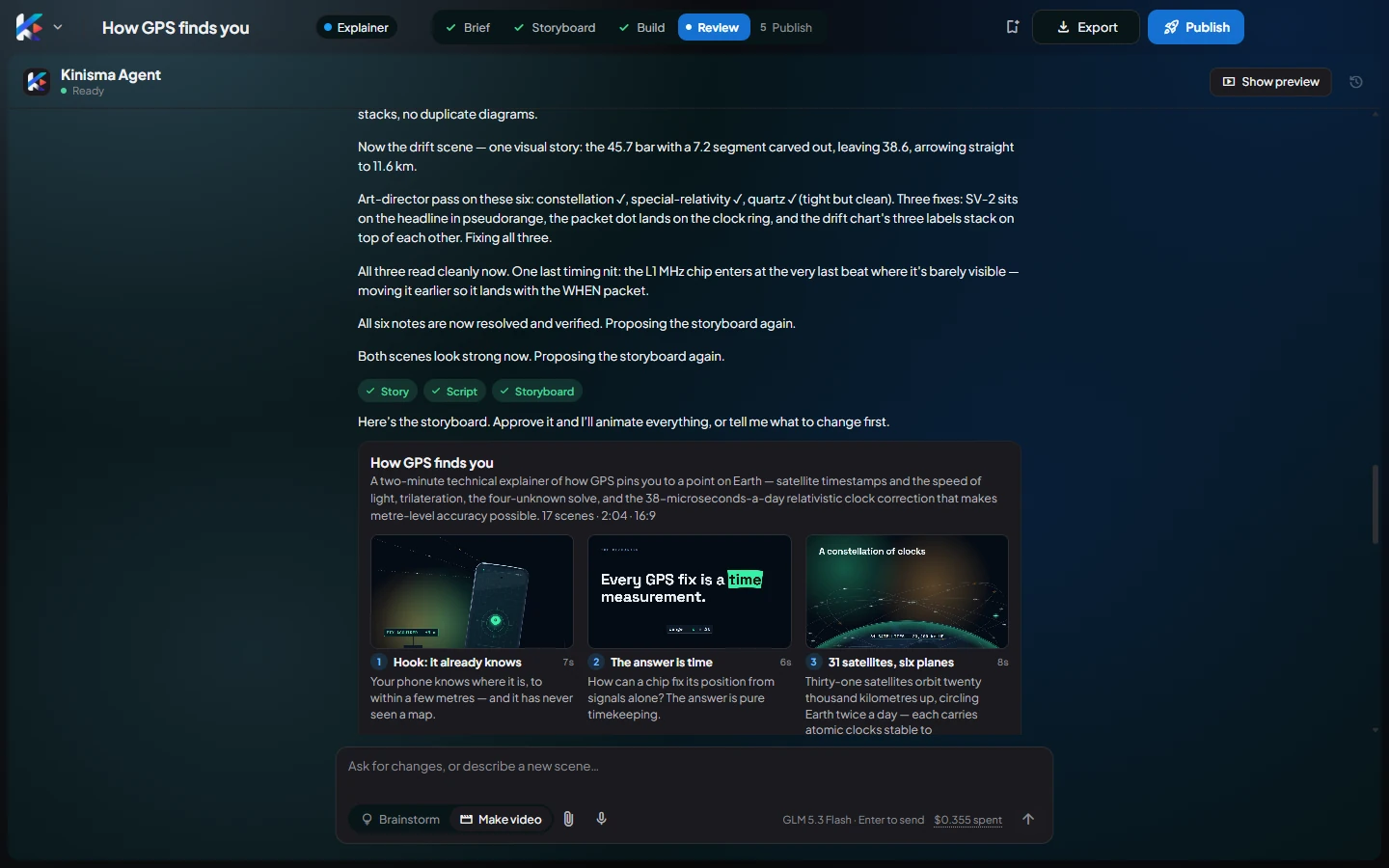
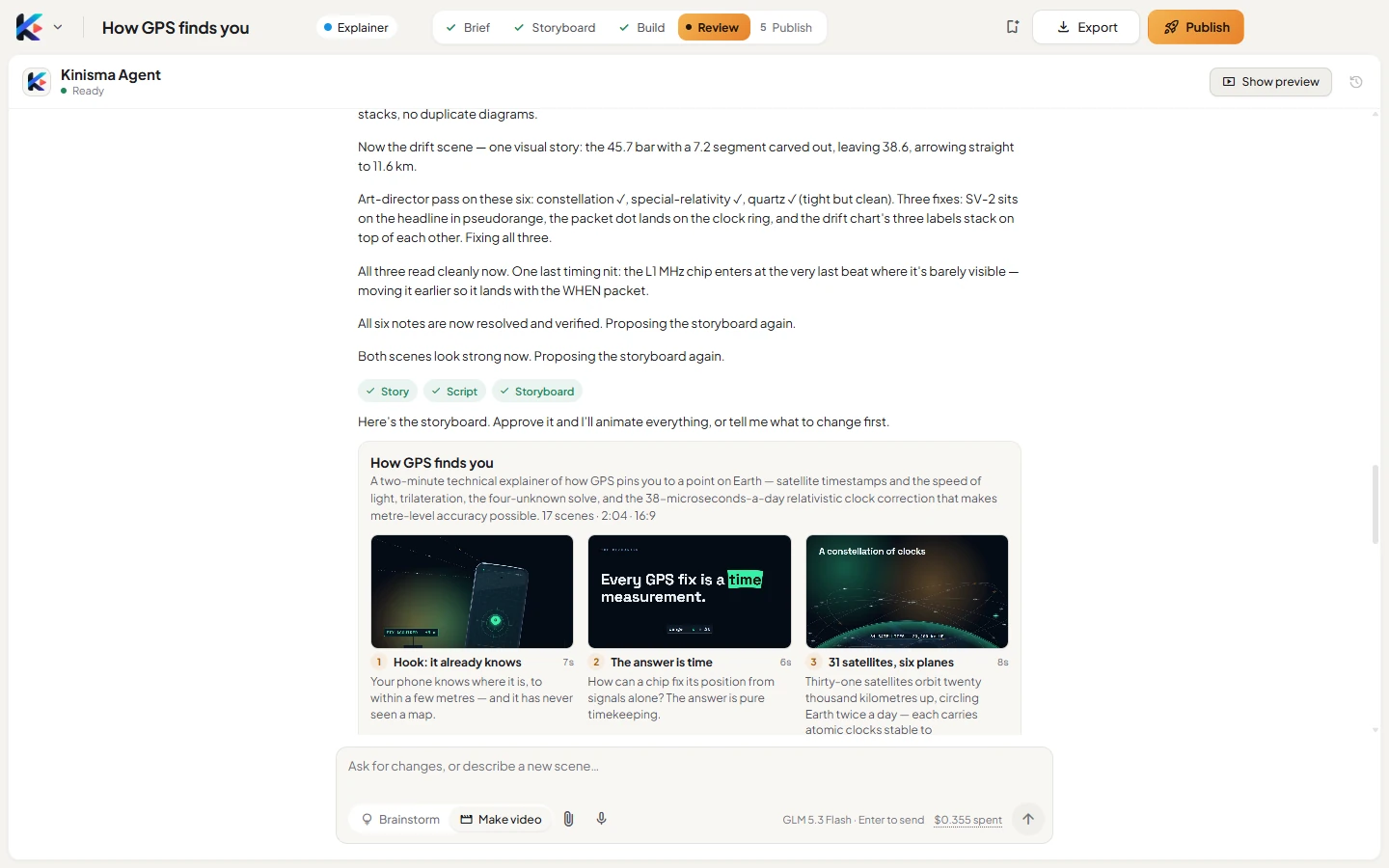
What's on it
- At the top: the video's title, what it's about, how many scenes and how long, and the aspect ratio. The Story, Script and Storyboard badges show what the agent has finished.
- One panel per scene: a sketch of the scene, its number and title, its length, and what the narrator says.
Click a panel to see it large. In the large view, use the arrows or ← → to move between scenes, and Esc to close.
Approve it
Click Approve storyboard (in the chat or in the large view). The button changes to Approved, and the agent animates every scene, adds the narration and music, checks its work and builds the video. The steps move from Storyboard to Build.
Or ask for changes
Type what you'd like different, just as you would to a person. For example:
- "Make it shorter: five scenes at most."
- "Open with a surprising number instead of a question."
- "Scene 4 should explain the formula step by step."
- "Use a warmer, friendlier tone in the narration."
The agent revises the storyboard and shows it again. Repeat until you're happy, then approve.
Questions
Do I have to approve the storyboard?
Yes. The agent waits for your approval before it animates the video, so you can fix the story while changes are cheap and quick.
Can I change the video after approving?
Yes. Once it's built, ask for any change in the chat, for the whole video or for one scene.
Was this article helpful?