
The Studio
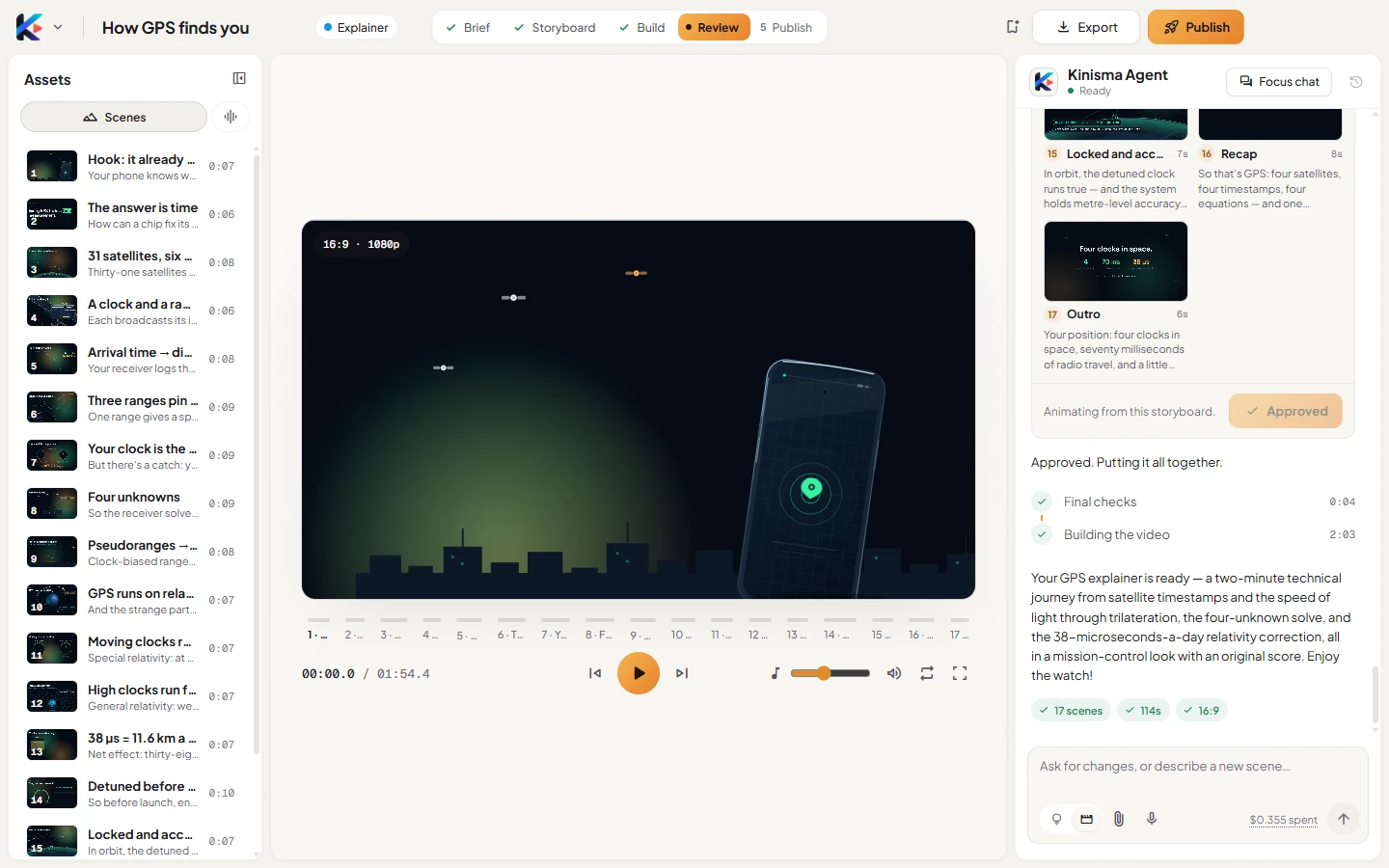
The Studio screen, where a video is made, with its top bar, the steps from brief to publish, and how the chat, preview and assets panels fit together.
The Studio is where a video is made. Open a project from Home, or start a new one, and you land here.
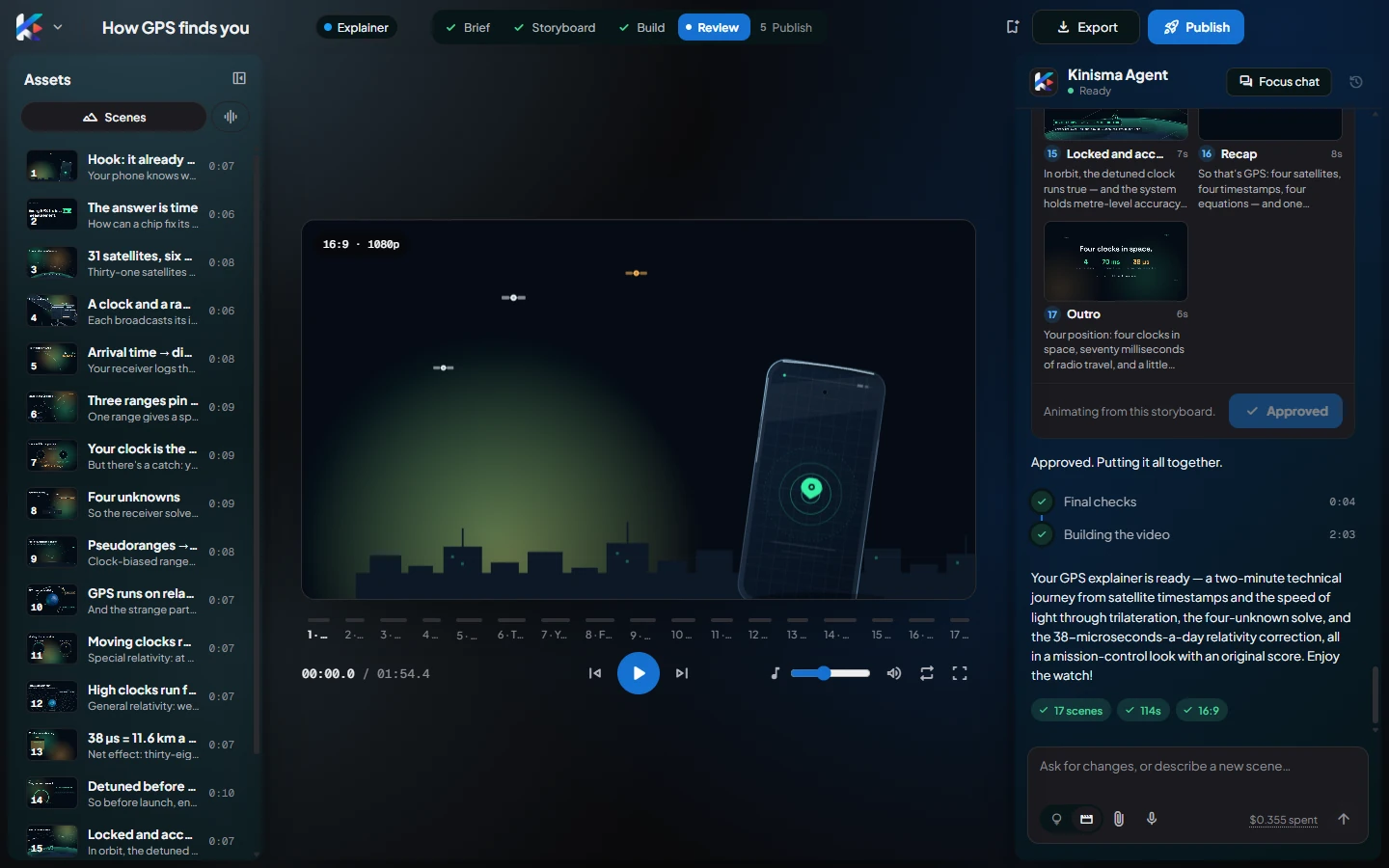
The top bar


From left to right:
- Kinisma logo: the main menu (Menus and shortcuts).
- The project's name: click to rename it; Enter saves, Esc cancels.
- The video type, then the steps (below).
- Save as template (bookmark icon): appears once the video is ready. See Templates.
- Export: saves the video as an MP4. See Export.
- Publish: titles, descriptions and thumbnails. See Publish.
The steps


The steps show where your video is:
| Step | What's happening |
|---|---|
| Brief | You and the agent agree what the video is about. The agent researches and plans. |
| Storyboard | The agent shows every scene for you to approve. See Storyboard. |
| Build | The agent animates the scenes, adds narration and music, and checks its work. |
| Review | The video is ready: watch it, and ask for any changes. |
| Publish | You're writing the titles, descriptions and thumbnails. |
The layout
While you're still planning (Brief and Storyboard), the chat fills the window so there's room for the storyboard. Once there's a video, the window splits into three:
- Assets (left): the scenes, narration and music. → Preview and assets
- The preview (middle): play the video and jump to scenes. → Preview and assets
- The agent chat (right). → Agent chat
Switch between the two layouts with Focus chat / Show preview at the top of the chat. Collapse the Assets panel with the button in its header.
Was this article helpful?
Still stuck?Write to [email protected] or use the contact page. Tell us your computer (Windows or macOS) and what you tried.