
Publish to YouTube
Connect your YouTube channels on the Channels page, then upload a finished video straight from Kinisma Studio with its title, description, tags and thumbnail, as public, unlisted, private or scheduled.
Upload a finished video to YouTube straight from Kinisma Studio, with the title, description, tags and thumbnail Kinisma writes. Connect your channel once, then publish from the Publish screen.
Version 0.2.3 and later. Your plan sets how many videos you can upload a day; the Free plan doesn't include publishing from the app.
Connect your channel
Click the Kinisma logo (top-left) and choose Channels.
On the YouTube card, click Connect YouTube. To sign in with a particular browser, pick it under Open in first.
Google's sign-in opens in your browser and the app shows Finish in your browser…. Pick your Google account, then the channel (brand channels are listed too).
Google asks for two permissions:
- Manage your YouTube videos, so Kinisma can upload;
- View your YouTube account, used only to show your channel's name, handle and picture.
Click Allow.
Back in Kinisma, your channel appears with its picture, name, @handle and a Connected badge.
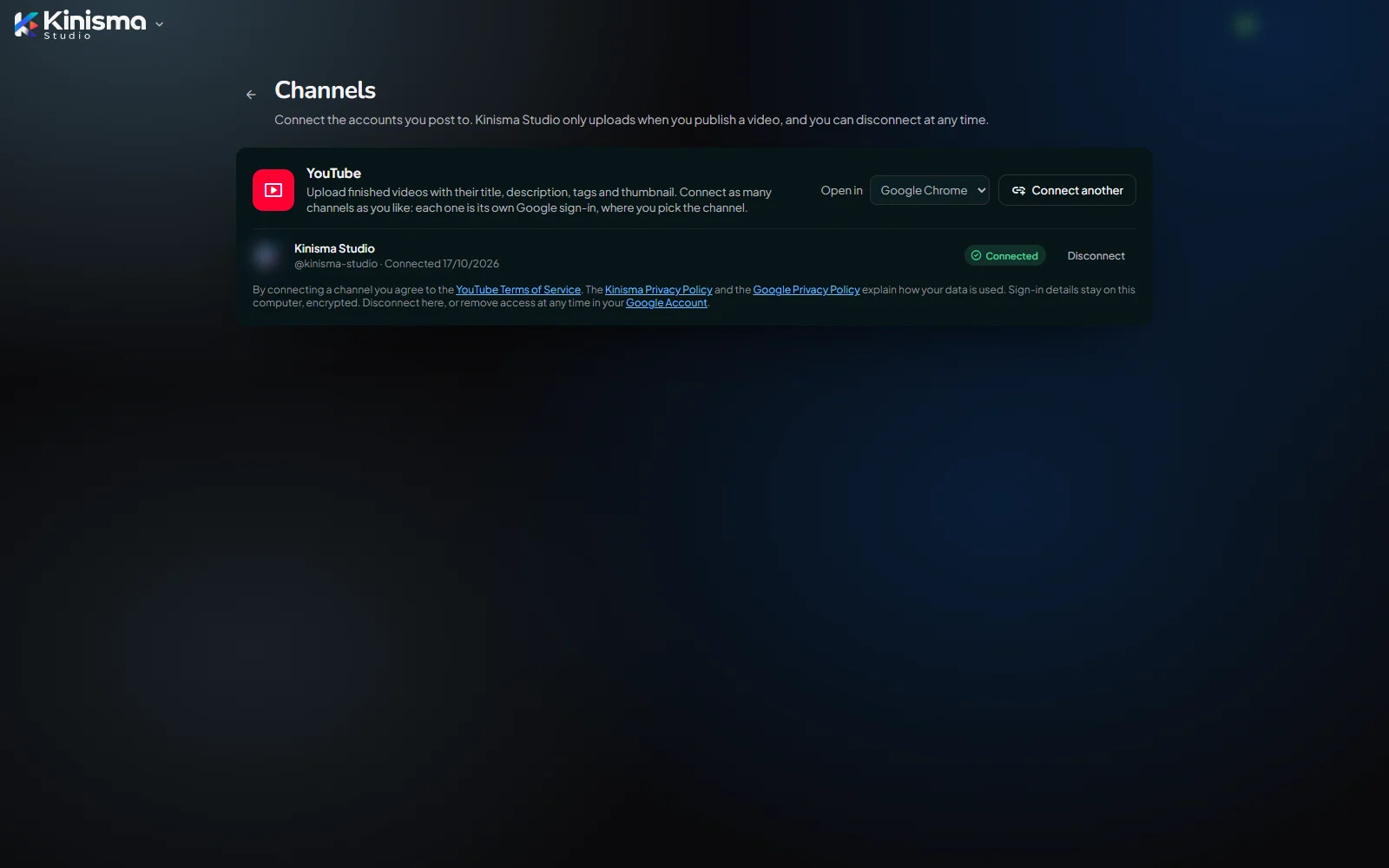
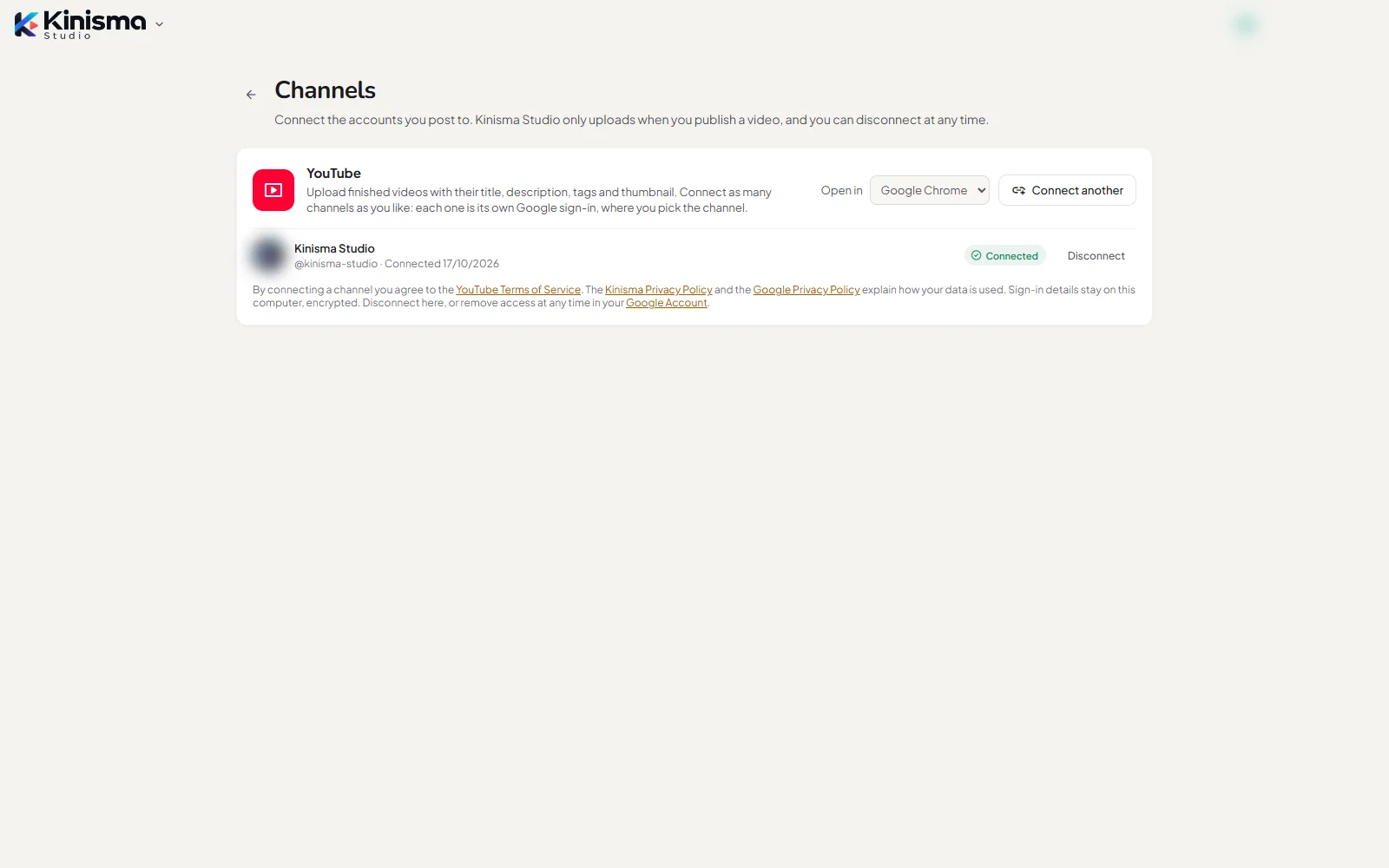
To add another channel, click Connect another.
Your sign-in details stay on this computer, encrypted. Kinisma uploads only when you publish a video.
Publish a video
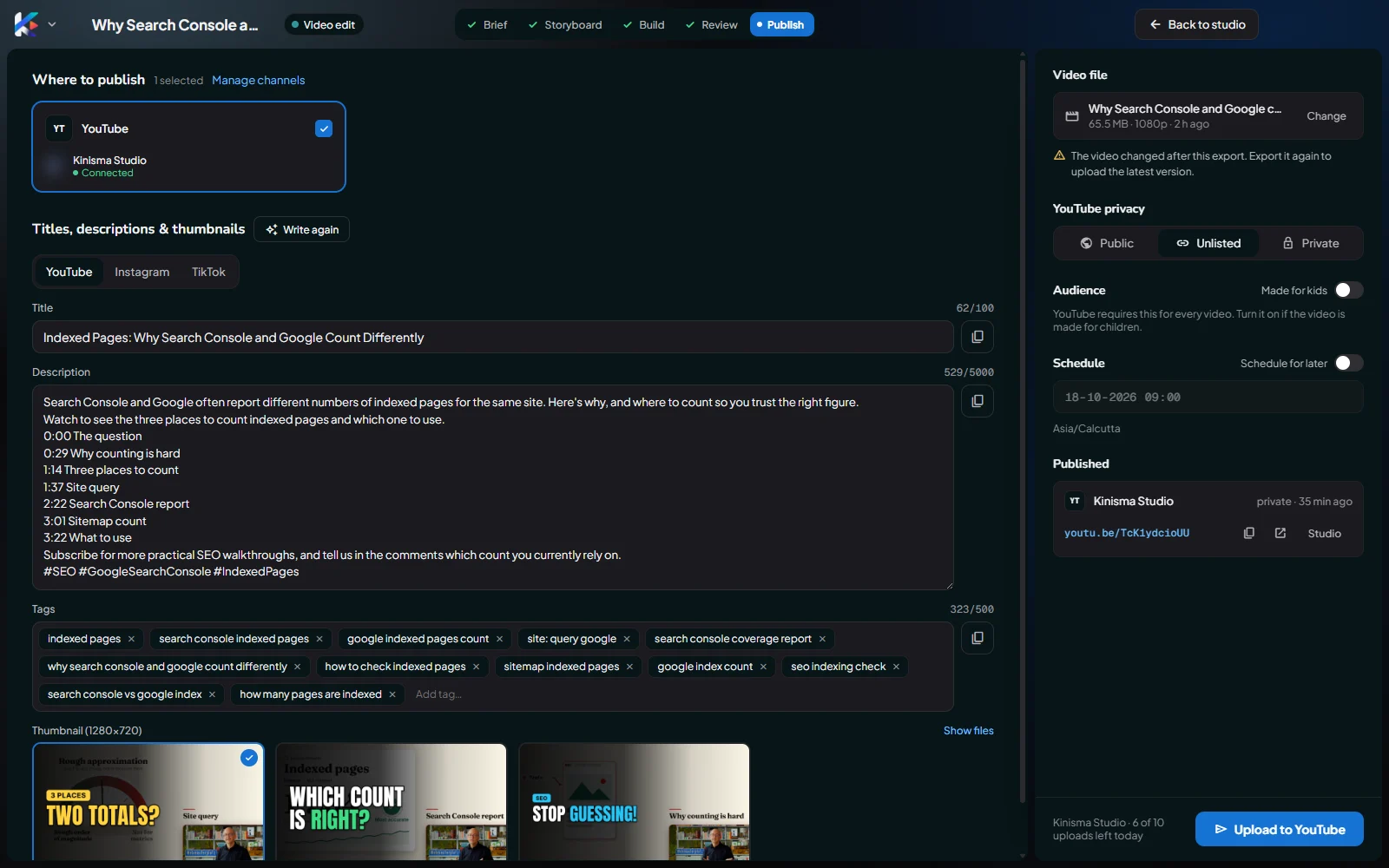
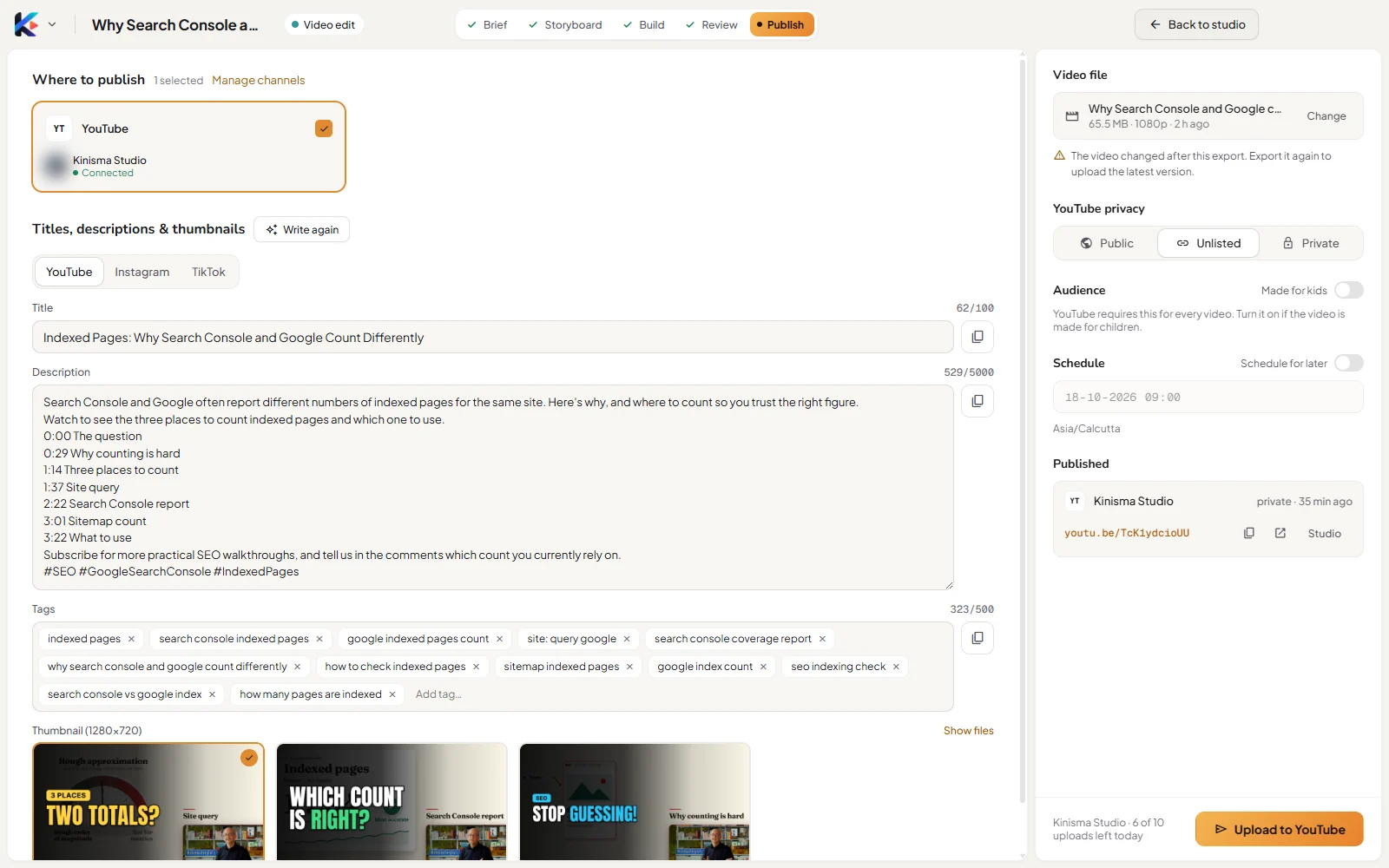
- Open the finished video and click Publish at the top of the Studio.
- Under Where to publish, check the YouTube card is ticked. If you've connected several channels, pick one.
- Click Write titles & thumbnails. In about a minute you get a title, a description with chapters from the real section times, tags and three thumbnails. Pick a thumbnail and edit anything; changes save as you type. See The publish kit.
- On the right:
- Video file: the project's last export. Click Change to pick another MP4. If you changed the video after exporting, you'll see "The video changed after this export": export it again to upload the latest version.
- YouTube privacy: Public, Unlisted (the default) or Private.
- Audience: turn on Made for kids if the video is made for children. YouTube requires this for every video.
- Schedule: turn on Schedule for later and pick a date and time. The video stays private until then, then goes public.
- Click Upload to YouTube (or Schedule on YouTube).
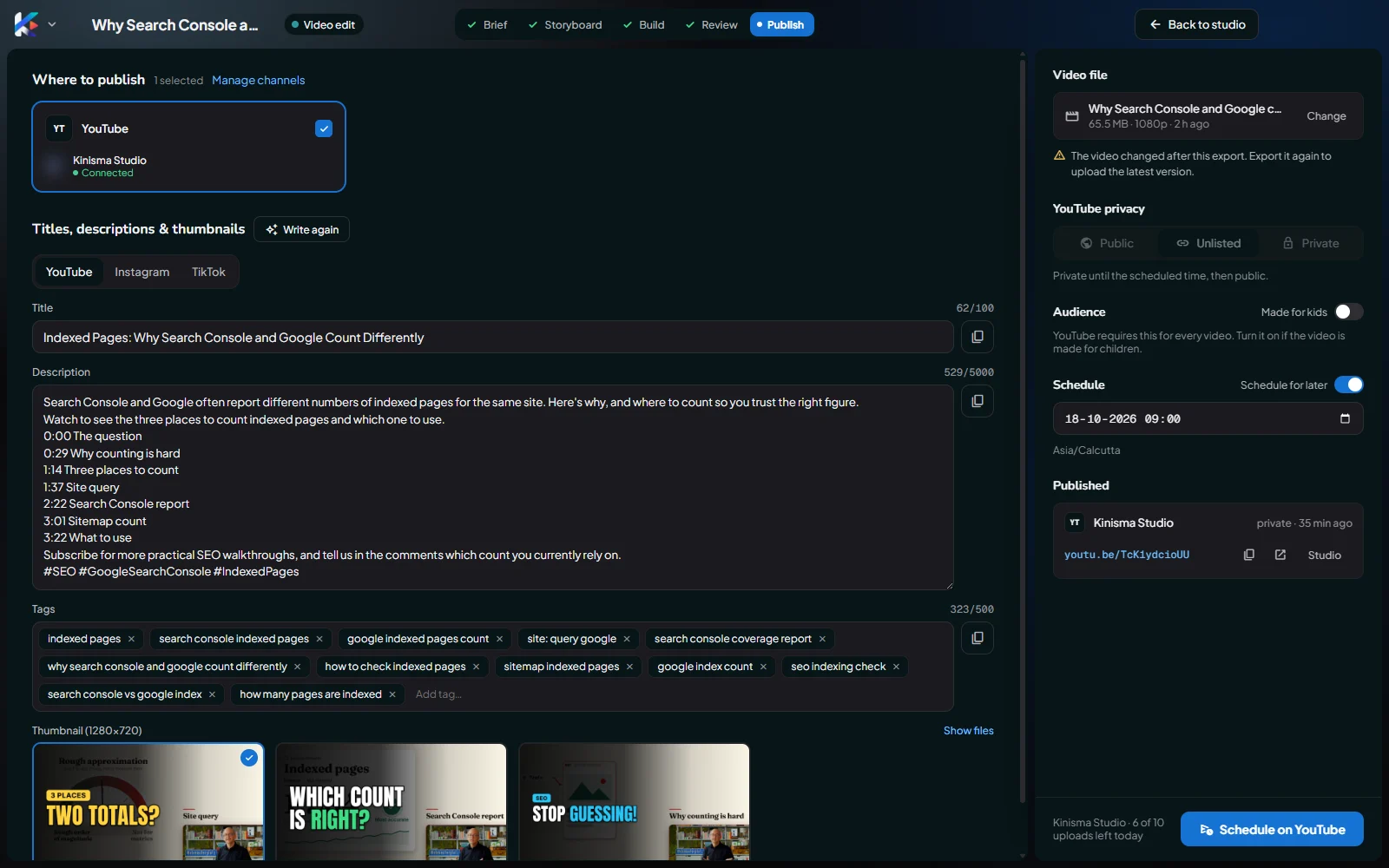
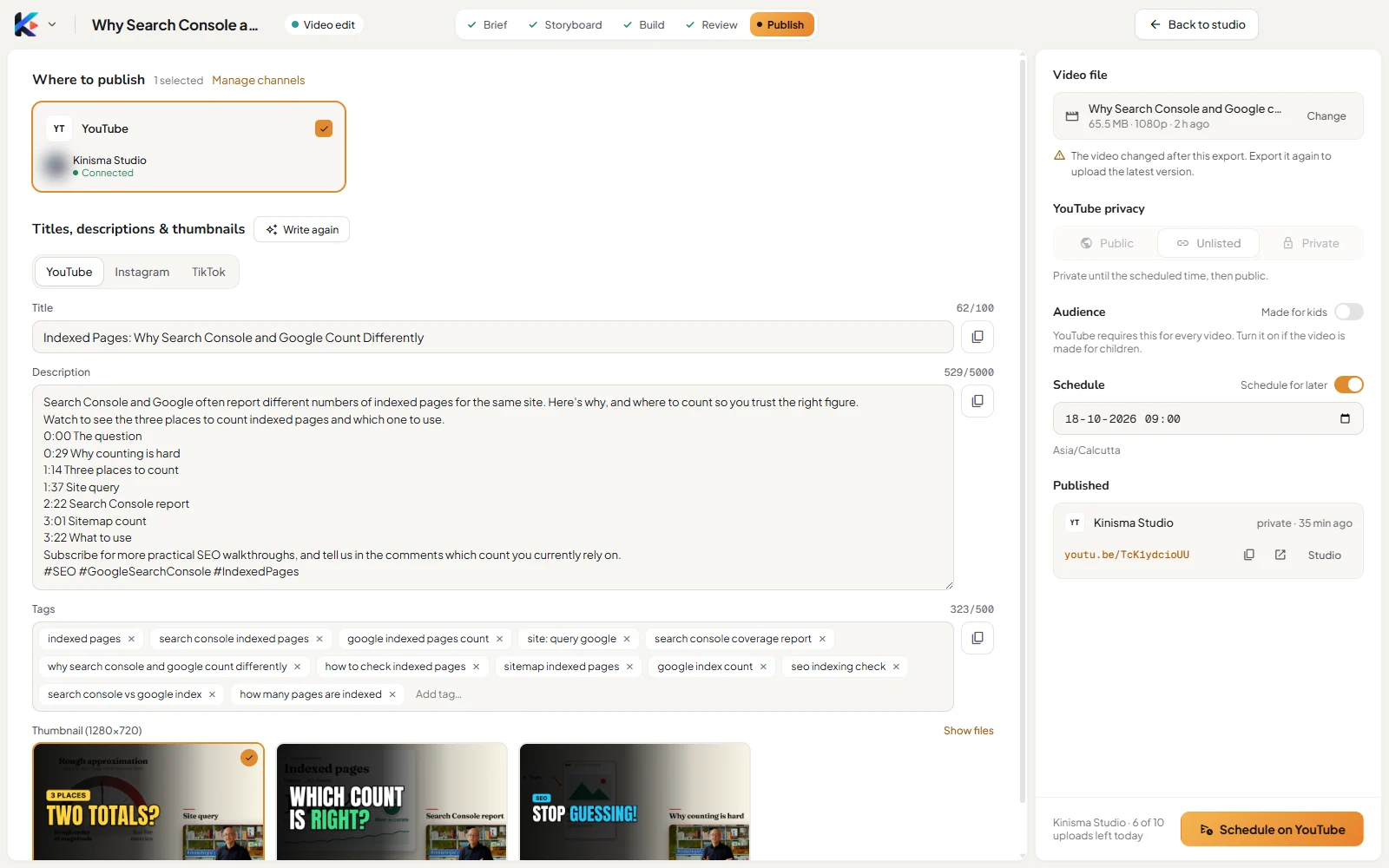
The Upload section shows the channel and the progress. Click ✕ to cancel.
When it's done, the video shows as Published with its youtu.be link, Copy link, Open on YouTube and Studio (YouTube Studio). The link is kept with the project.
Uploads a day
Each upload counts toward your plan's daily limit, which resets at midnight UTC. Failed and cancelled uploads don't count.
- The Publish screen shows how many are left, for example 3 of 10 uploads left today. Unlimited plans show nothing.
- At the limit, the upload button is turned off: "No uploads left today: publish again tomorrow, or upgrade."
- On the Free plan: "Publishing isn't included in your plan." Click Upgrade, or export the video and upload it on YouTube yourself.
See Plans and credits.
If something goes wrong
| Message | What to do |
|---|---|
| Export the video first, or choose an MP4 file. | Export the video, or click Change and pick an MP4. |
| That YouTube channel isn't connected. | Connect it on the Channels page. |
| Pick a time in the future to schedule it. | Choose a time at least a minute from now. |
| A note that the thumbnail wasn't accepted | Custom thumbnails need a verified YouTube account: verify at youtube.com/verify. The video itself is uploaded. |
| A note that the privacy was changed | YouTube decided the privacy setting; check it in YouTube Studio. |
Other errors show under Upload. Try again; a failed upload doesn't count toward your limit.
If Google signs Kinisma out of a channel, its row on the Channels page shows a reconnect button.
Disconnect a channel
On the Channels page, click Disconnect next to the channel and confirm. Kinisma deletes its sign-in details and removes its access with Google. Signing out of Kinisma does the same for every channel. You can also remove access at any time in your Google Account.
How Kinisma handles your YouTube data: Privacy policy.
Questions
Which plans can upload to YouTube?
Paid plans and pay as you go, up to each plan's uploads a day. The Free plan doesn't include publishing from the app: export the video and upload it on YouTube yourself.
What does Kinisma get access to on my channel?
Two permissions: Manage your YouTube videos, to upload, and View your YouTube account, only to show your channel's name, handle and picture. Kinisma uploads only when you publish a video. Sign-in details stay encrypted on your computer.
Why wasn't my custom thumbnail used?
YouTube only accepts custom thumbnails from verified accounts. Verify yours at youtube.com/verify, then set the thumbnail in YouTube Studio. The video itself still uploads.
Can I connect more than one channel?
Yes, as many as you like, including brand channels. Each one is its own Google sign-in, where you pick the channel.
Was this article helpful?