
Video edit
Turn a raw recording of yourself talking into a finished video. Kinisma cuts the pauses, filler words and retakes, adds graphics timed to your words, captions, zooms and music, and shows you a storyboard to approve first.
Video edit turns a raw recording of you talking into a finished video. Kinisma listens to every word, cuts the pauses, filler words and retakes, and adds graphics that land on what you say, plus captions, zooms and music. You approve a storyboard before anything is made.
Version 0.2.3 and later.
Make a video edit
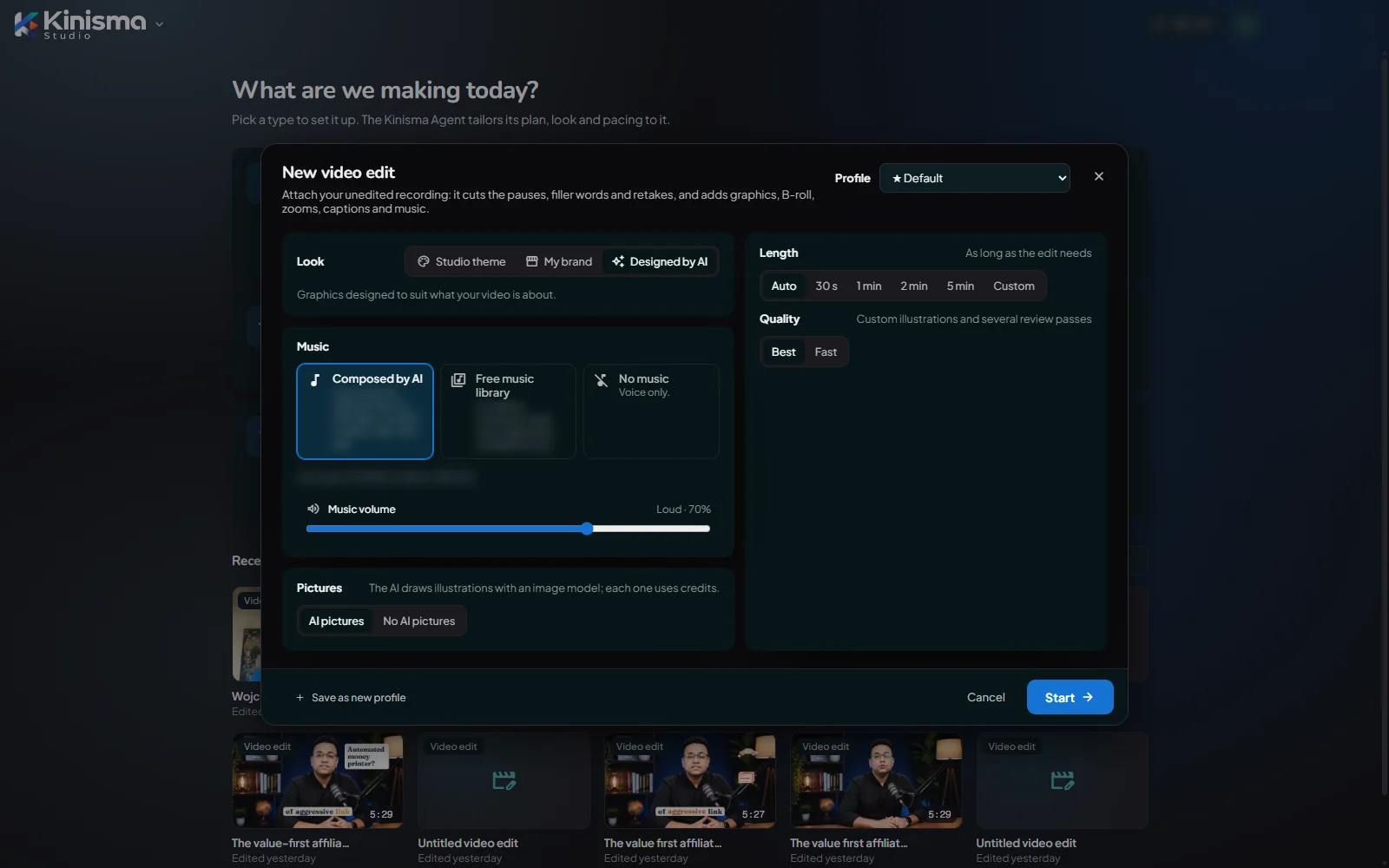
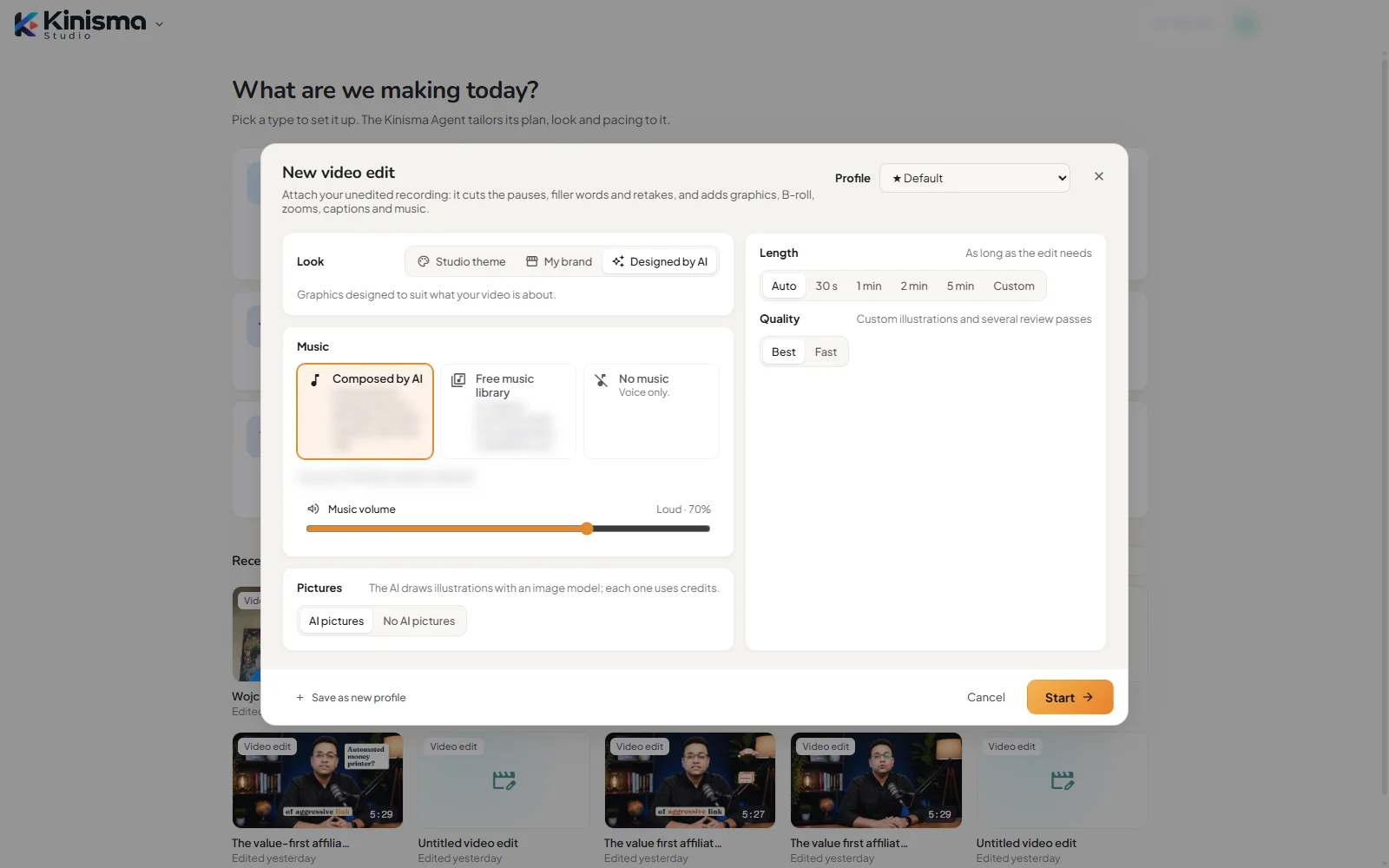
On Home, under What are we making today?, pick Video edit.
In the New video edit window, choose:
- Look: Studio theme, My brand, or Designed by AI (the AI designs graphics to suit what your video is about, over your recording's first frame).
- Music: Composed by AI, Free music library or No music, and the music volume.
- Length: As long as the edit needs, or a target length.
- Quality.
- Pictures: AI pictures (the AI draws illustrations; each one uses credits) or No AI pictures (stock photos, doodles and graphics only).
There's no voice, narrator or aspect ratio to pick: the edit keeps your recording's own voice and shape.
Click Start.
Attach your recording with the paperclip, or drop it on the chat, and say in a sentence what it's for, for example "A 3-minute tip for my SEO channel about indexed pages". Send.
Watch the progress in the chat (see below). When the storyboard appears, check it.
Click Approve storyboard, or type what to change.
When it's built, the video plays in the Studio. Ask for changes, then export it or publish it to YouTube.
What happens to your recording
The chat shows each step as it goes:
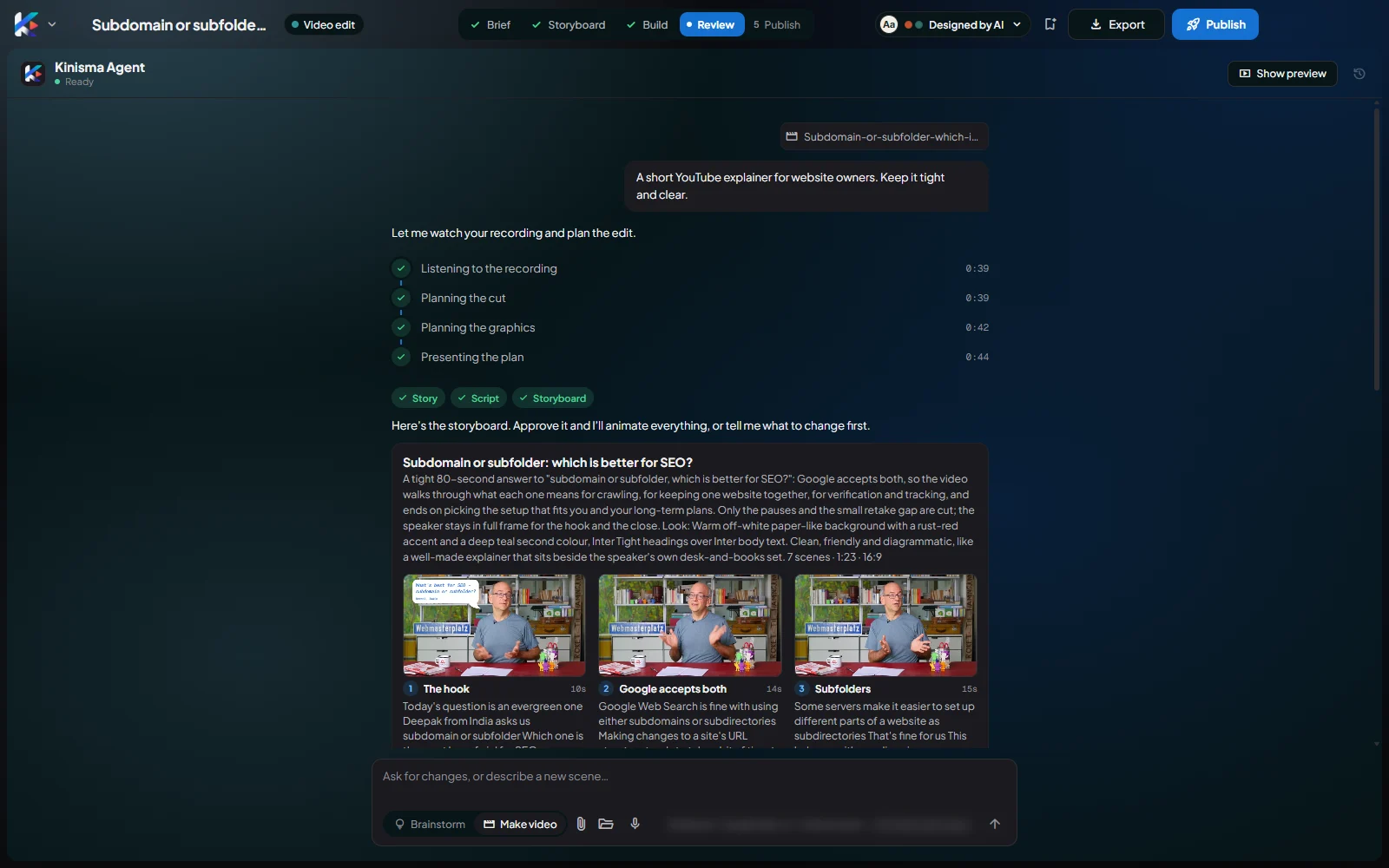
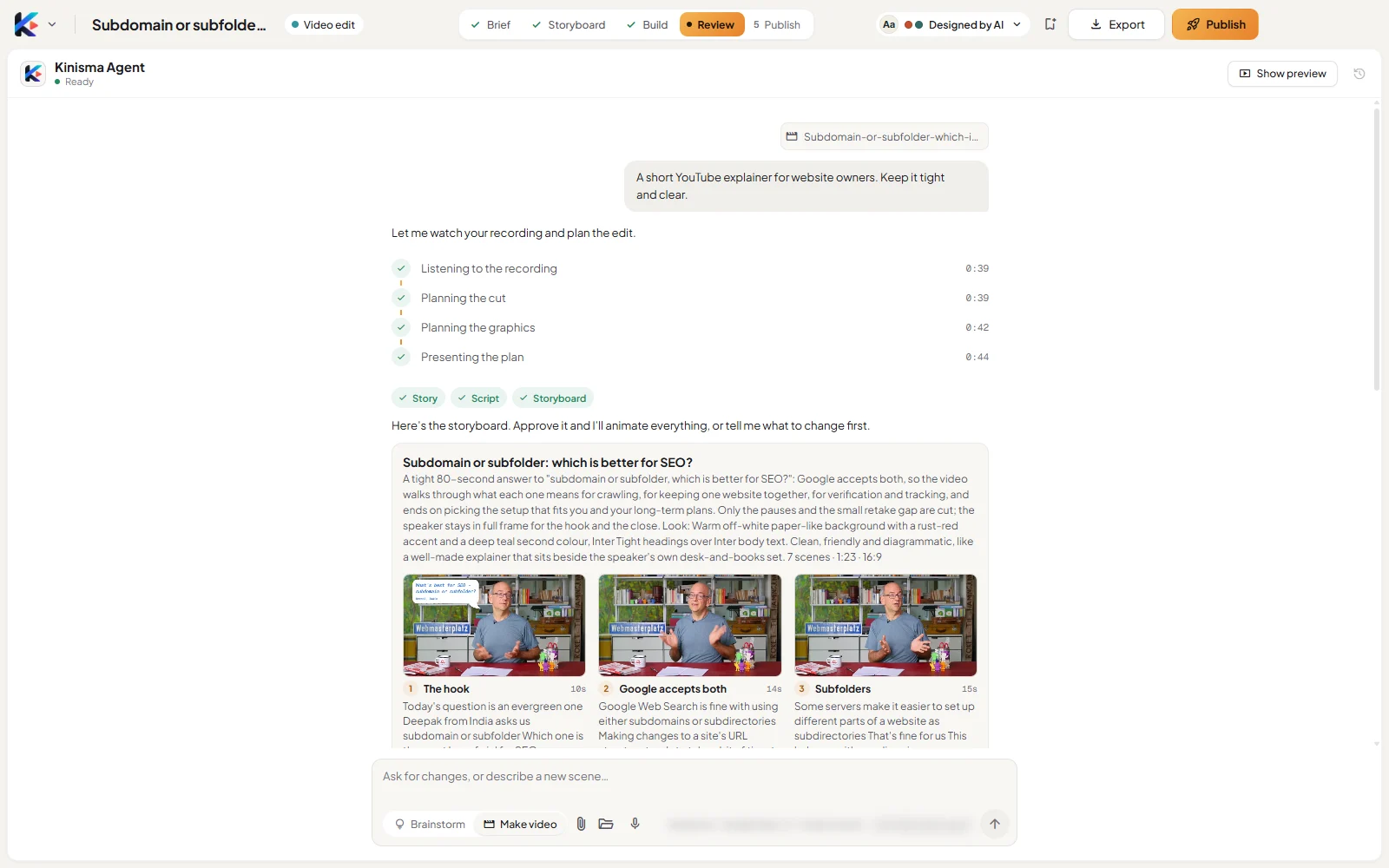
- Listening to the recording: every word is transcribed with its timing. If a speech-to-text model is busy, another one takes over.
- Planning the cut: dead air at the start and end, false starts, retakes (the last clean take is kept), stumbles and tangents are dropped, and the rest is split into sections of about 8–25 seconds. Pauses are tightened and "um"s and "uh"s removed. Every sentence stays whole where sections join.
- Planning the graphics: a graphic about every 6–10 seconds, each landing on the exact words. There are three kinds: animated graphics (diagrams, charts and mock-ups that build on your words), AI illustrations and hand-drawn doodles. A graphic fills the frame, or you move to a corner or side box with the graphic beside you.
- Presenting the plan: the storyboard.
Approve the storyboard
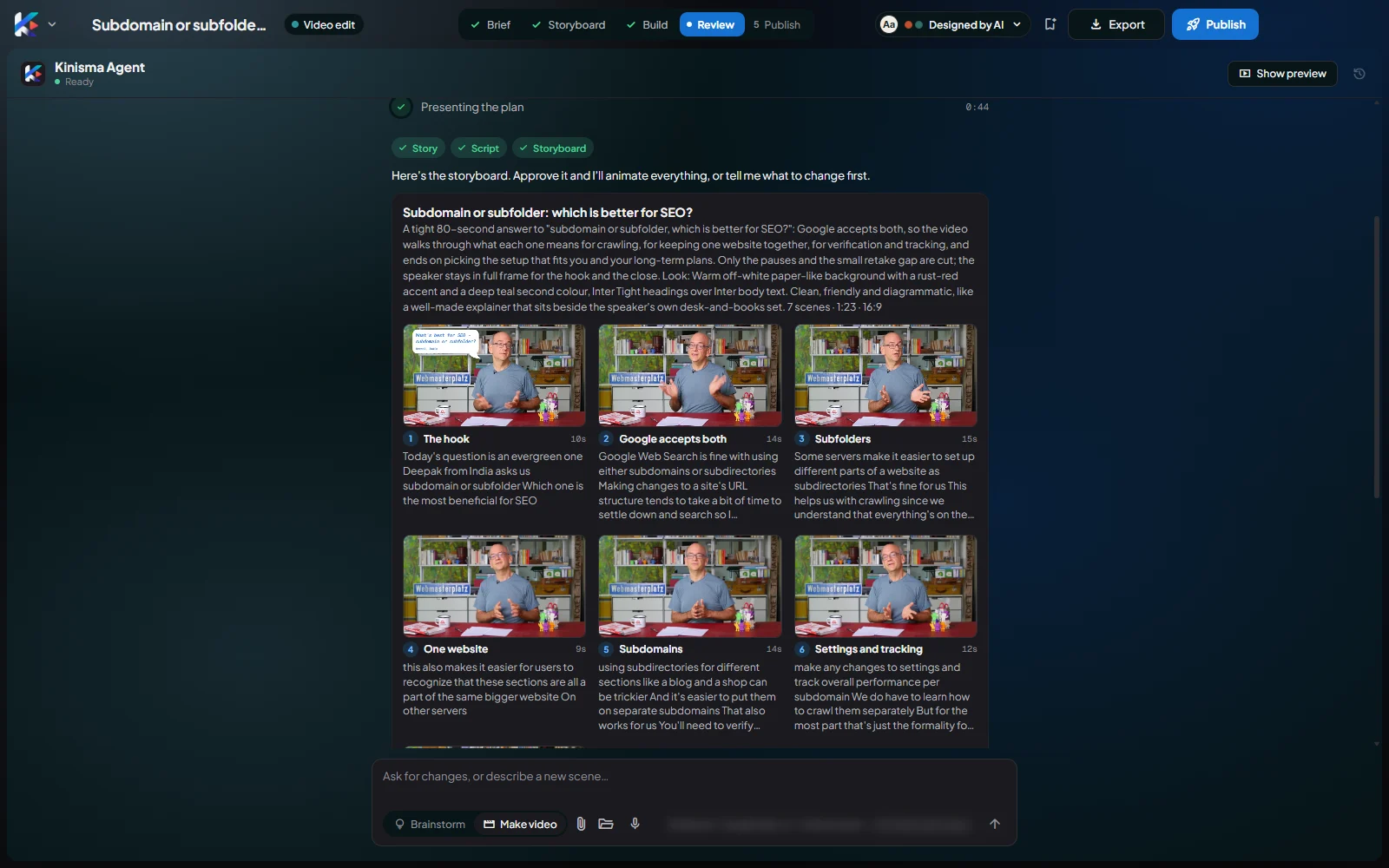
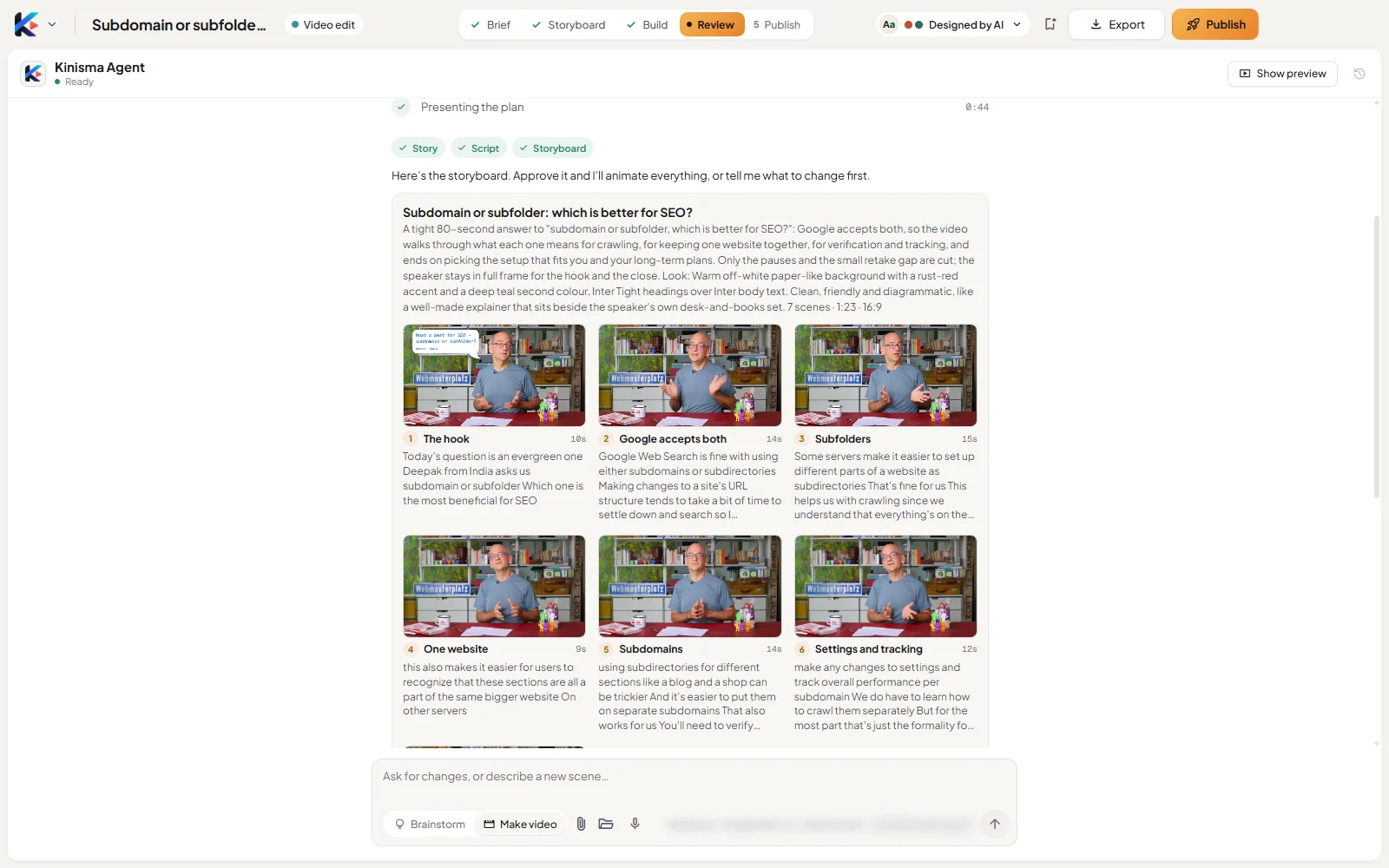
The storyboard shows one panel per section: a still, a title and what's on screen. Click a panel to see it large, and use Next scene to step through.
Nothing is drawn, generated or coded until you click Approve storyboard. To change something first, just say it: "no graphic in section 2", "use a chart for the numbers".
After you approve, the chat shows Making the pictures and doodles, Designing the graphics, Reviewing the edit and Building the video.
What's in the finished video
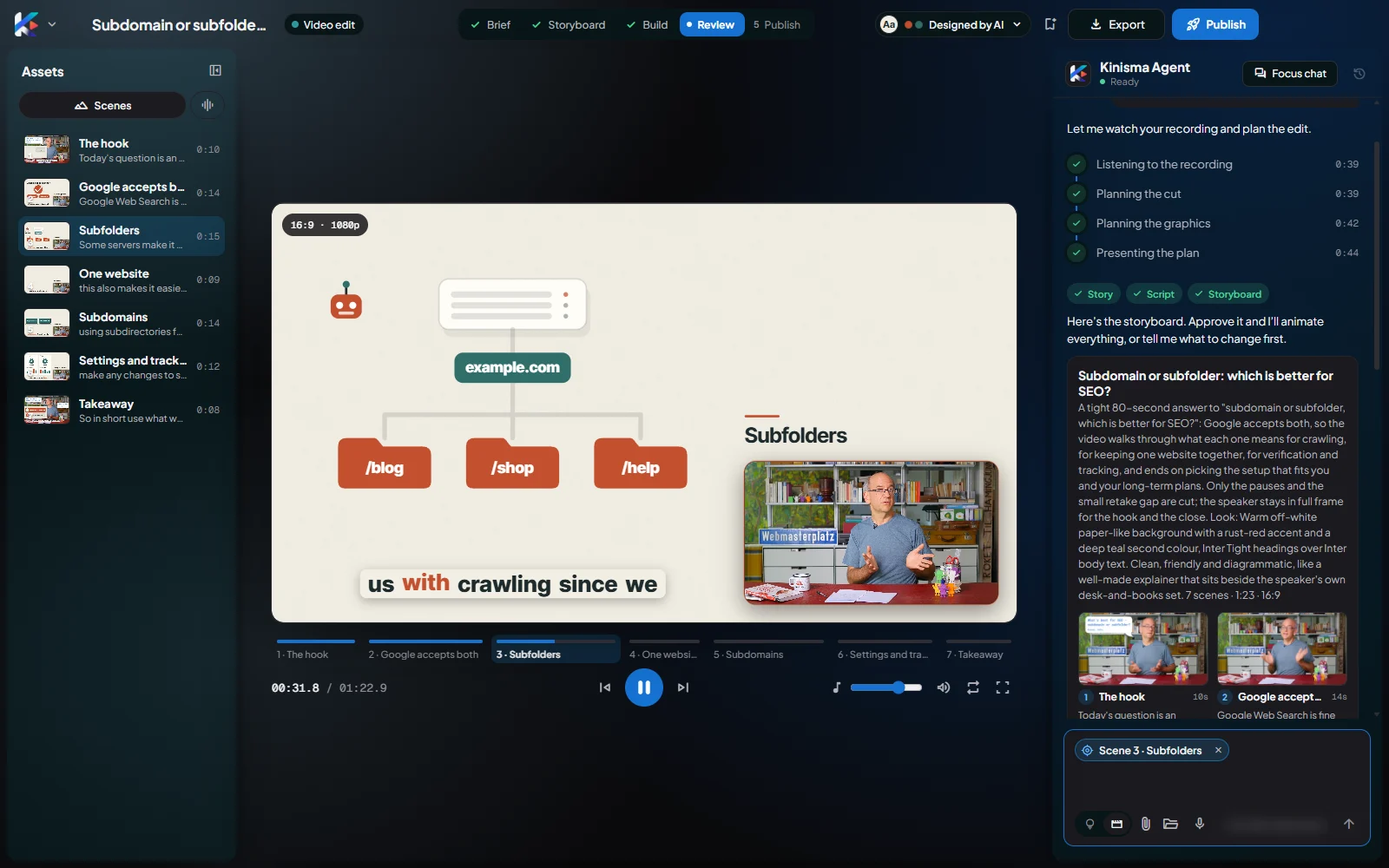
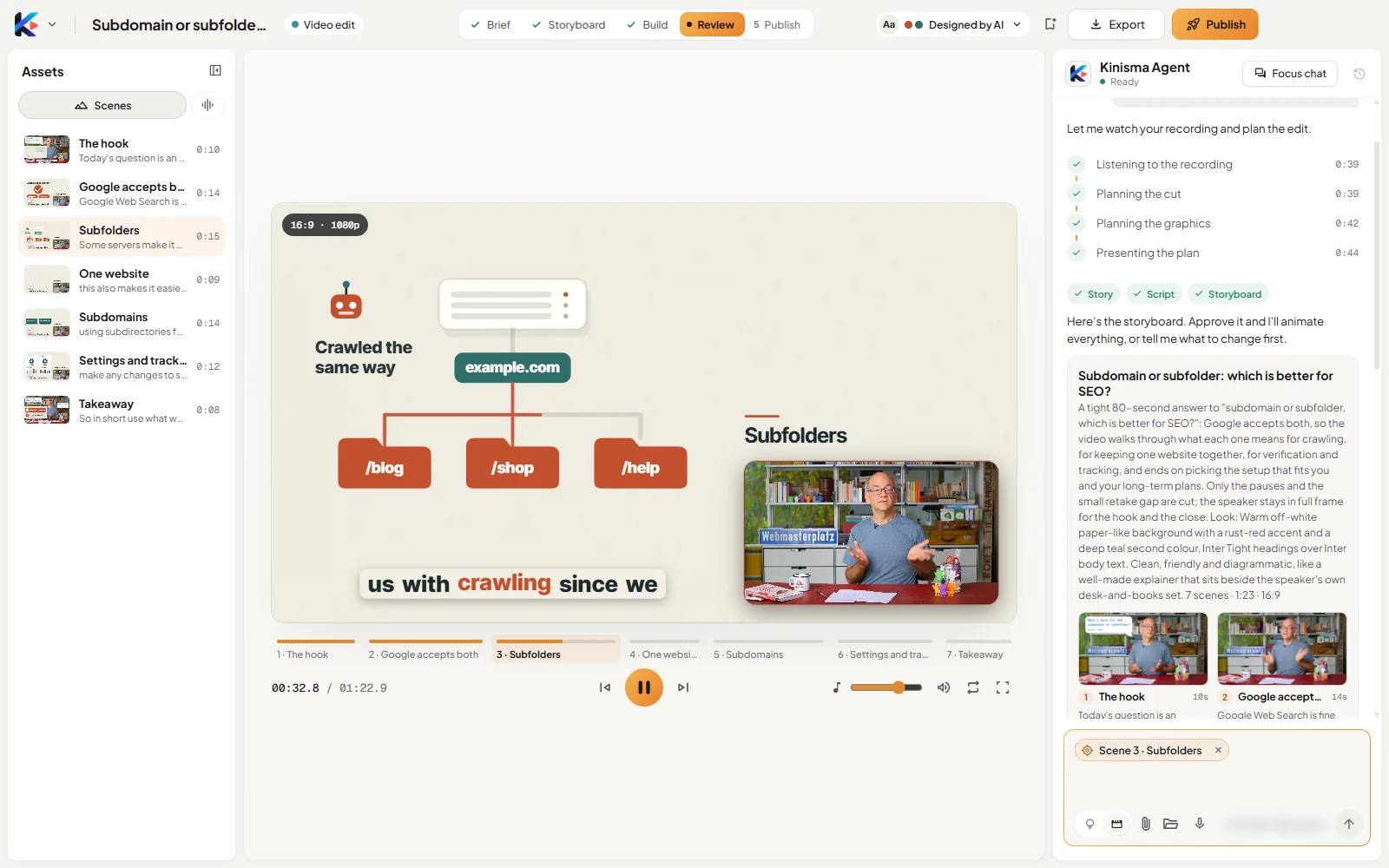
- Tight cuts, with zooms and punch-ins alternating on jump cuts so they feel natural.
- Graphics timed to your words.
- Captions in their own band, so they never cover the graphics.
- Section titles as chapter headings.
- Music under your voice, unless you chose No music.
Change it
Ask in the chat in plain words:
- "Keep the sentence about pricing."
- "Cut the part where I talk about my old job."
- "Change the graphic in section 3 to a bar chart."
- "Make it tighter."
- "No music."
The agent re-plans and rebuilds only what's needed.
Credits
On pay as you go, a video edit uses credits for:
- speech-to-text, per minute of recording;
- the agent's planning and graphics design;
- each AI picture, when AI pictures is on;
- music, when it's Composed by AI.
On Free and Lifetime, the AI runs on your own key instead. See Plans and credits.
If your recording can't be read
An error card, Couldn't read your recording, has Retry and Show details:
| Message | What to do |
|---|---|
| The speech-to-text services are busy right now. | Press Retry in a minute. What was already heard is kept. |
| You're out of AI credits. | Top up on the website, then press Retry. |
| Your Kinisma sign-in has expired. | Sign in again, then press Retry. |
| This video has no sound. | A video edit is planned from what's said: attach a recording with your voice. |
| That file couldn't be opened as a video. | Export it again as an MP4 and attach it. |
| Speech-to-text didn't work for this recording. | Press Retry; if it keeps failing, Show details has the reason. |
Questions
What kind of recording works?
A video of someone talking, with clear speech: a talking head, a webinar clip, a lesson or a vlog. MP4, MOV, M4V, WebM, MKV or AVI, up to 1 GB per file. Other formats are converted to MP4 automatically first.
Does it change my voice or my words?
No. The edit keeps your own voice, your words and the recording's shape (16:9, 9:16 and so on). It only removes what you'd cut yourself: dead air, false starts, retakes, stumbles and filler words.
What uses credits?
Speech-to-text (per minute of recording), the agent's planning and graphics design, each AI picture if AI pictures are on, and AI-composed music. Pick No AI pictures and Free music library to spend less.
Can I get a bit back that it cut?
Yes. Ask in the chat, for example "keep the sentence about pricing". The agent re-plans and rebuilds only what's needed.
Was this article helpful?